INNOVA 7111 SUPPORT
Get all the support you need for your product.
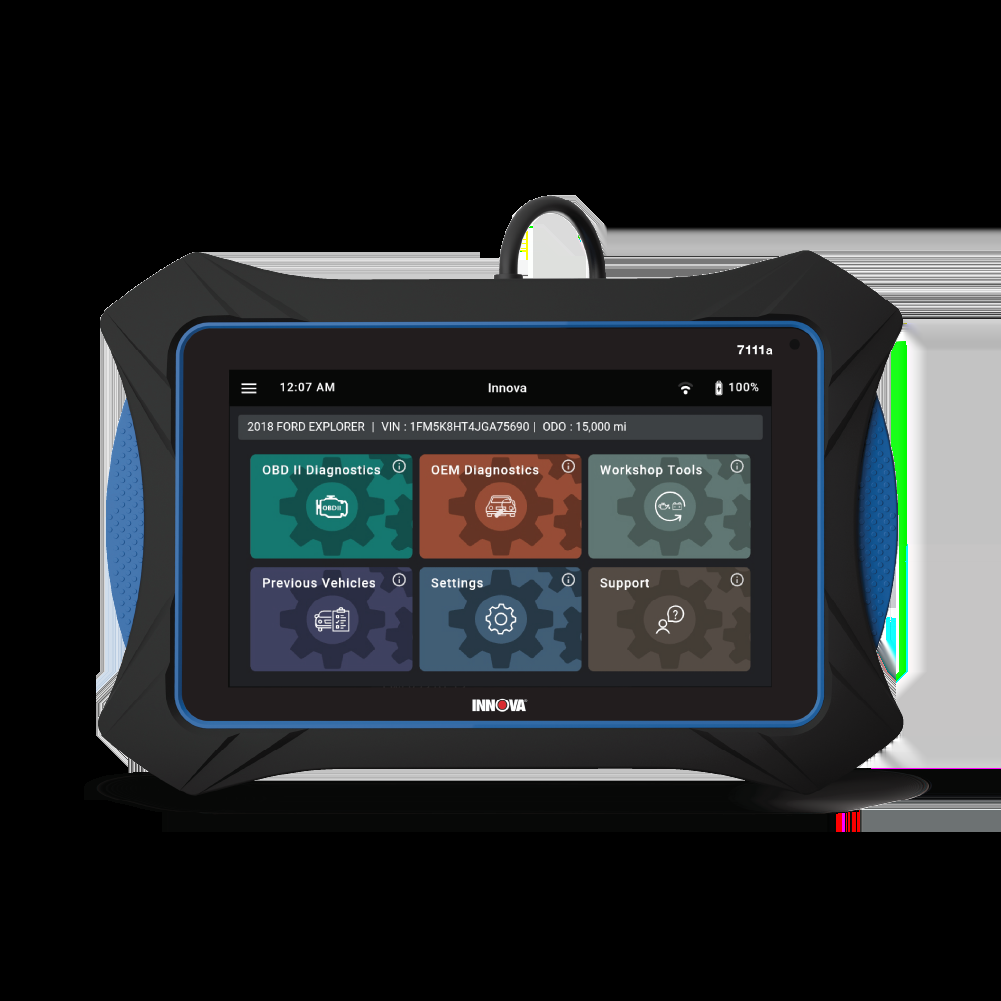
7111SDS Pro
Download Product Owner Manual:
Download Manual (English) Download Manual (Spanish)Updating the SDS Tool:
View InstructionNotify me when updates are available
Technical Support for further assistance.
Helpful Articles
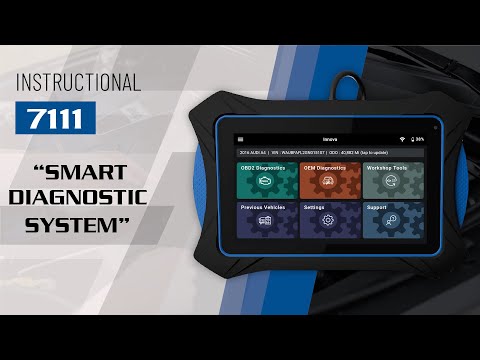
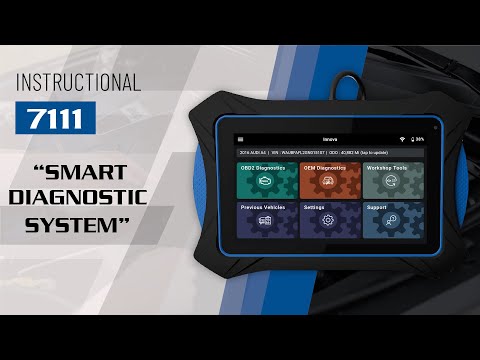
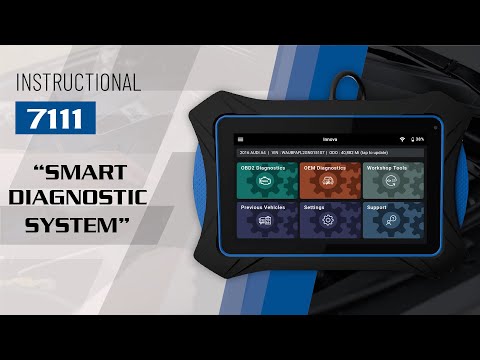
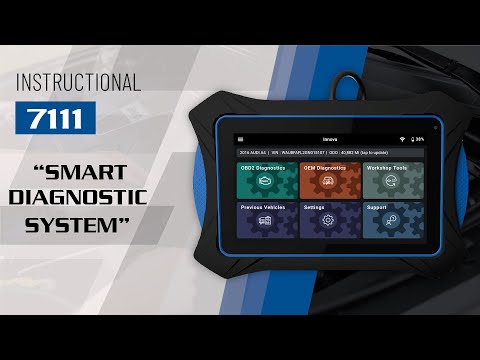
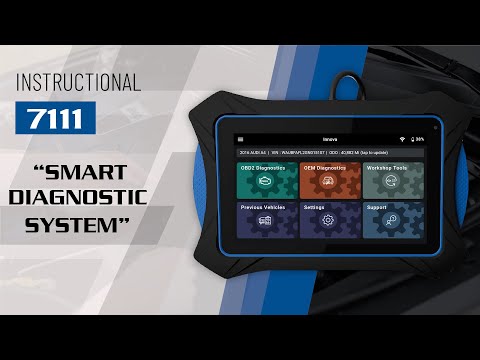
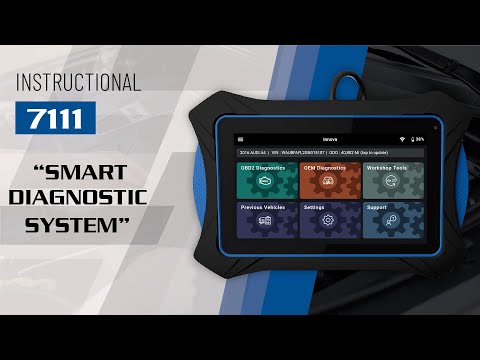
Get More Information From Our Videos
















7111 FAQs
The Innova 7111 supports most 1996 and newer OBD2 vehicles sold in the U.S. and Canada, including many cars, light trucks, SUVs, and hybrids. Customers can check supported functions and vehicle coverage here: Coverage Checker
Yes. The 7111 supports 44+ workshop tools, along with many bi-directional and special functions. Availability depends on the vehicle’s year, make, model, and engine. Customers can check supported functions and vehicle coverage here: Coverage Checker
Follow the steps below to resolve:
- If you are plugged into the DLC, disconnect the tablet from the vehicle’s DLC.
- Remove the VCI from the tablet.
- Turn off the tablet.
- Check the VCI’s Connector and Pogo Pins. Dirty connectors may cause VCI detection and connection issues. To clean the connectors and pogo pins, use alcohol wipes or a wire brush to remove any dirt and grime that might have collected during use.
- Reconnect and Power On the tablet.
- Successful Connection Confirmation.
To connect the 7111 to Wi-Fi, go to Settings > Wi-Fi on the 7111 tablet and select your network. Enter your password carefully — it is case-sensitive. Note that some users have experienced Wi-Fi connectivity issues after a firmware update. In those cases, a factory reset may be required (contact support first). Wi-Fi is needed for software updates and some app features.
Before you select ‘Check for Updates’ to update your Innova 7111 Tablet ensure that you met the following criteria.
- Make sure that your tablet is up to date, and that your software version is an older version.
- Your tablet is connected to a stable WIFI connection.
- Your tablet is above 50% battery. If your battery is under 50% then the tablet will not allow you to update your device.
- There may be multiple updates needed for your device, make sure to navigate back to your Settings and tap Update again until it says that there are no further updates for your device.
- Failing to do so will lead to unpredictable issues for your tablet such as VCI failing to be found, screen has issues, or flickering.
After you have met the criteria, please follow the steps below to update your tablet.
- Power on your device
- Select 'Settings'
- Scroll all the way down to the 'Version Information' interface.
- Select ''Check for Updates' to begin updating your device.
The 7111 will automatically prompt you whenever a selected function requires Secure Gateway authorization. Follow the instructions on the tool to complete the Secure Gateway unlock process. Innova 7111: How to unlock Secure Gateway (SGW)
The 7111 includes free lifetime software updates and core diagnostic functions with no mandatory subscription required. The only feature that may require an additional fee is the optional Repair Information service provided by MOTOR, a third-party service. This feature is clearly labeled as optional and is not required to diagnose vehicles or use the tablet’s main functions.
The Innova 7111 currently only supports vehicles sold in the USA & Canada.
Yes, replacement VCI cables and chargers are available for the 7111. Contact Innova support at protechsupport@repairsolutions.com or call 1-800-544-4124 (Mon–Fri, 6 AM – 6 PM PT) to request a replacement VCI cable or charger.
Have your proof of purchase ready. For out-of-warranty devices, there may be a cost for replacement parts or repair service.
Have Questions?
Please do not hesitate to contact us for assistance.
Our U.S.-based customer service team is ready to assist you.
-
 Phone: +1 800 - 544 - 4124
-
 Email: protechsupport@repairsolutions.com