Introduction
Description: The INNOVA® SDS50a: Android Tablet Smart Diagnostic System supports diagnostics for most vehicles, including those with Secure Gateway (SGW) modules found in newer models. The SGW is a firewall that protects the vehicle's network from unauthorized access. The SGW module blocks some functions, including:
Erasing Original Equipment Manufacturer (OEM) Diagnostic Trouble Codes (DTCs).
Running OEM Diagnostics (Special Functions or Active Tests).
Using Workshop Tools (Resets, Relearns, Routines, Calibrations).
Benefits: Unlocking the SGW allows technicians to perform comprehensive diagnostics and access essential features for more accurate vehicle maintenance and repair, ensuring smoother workflows and better service for customers.
Instructions
NOTE: Ensure that your Innova SDS50a is running firmware V24.05.04 or later. If not, refer to the guide for updating.
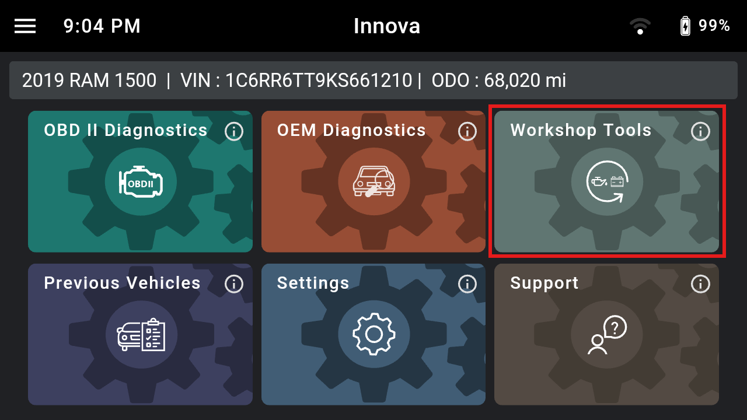
Step 1: In the home menu, tap the Workshop Tools section. The Innova SDS50a will show a screen with SGW unlocking instructions with reference video.
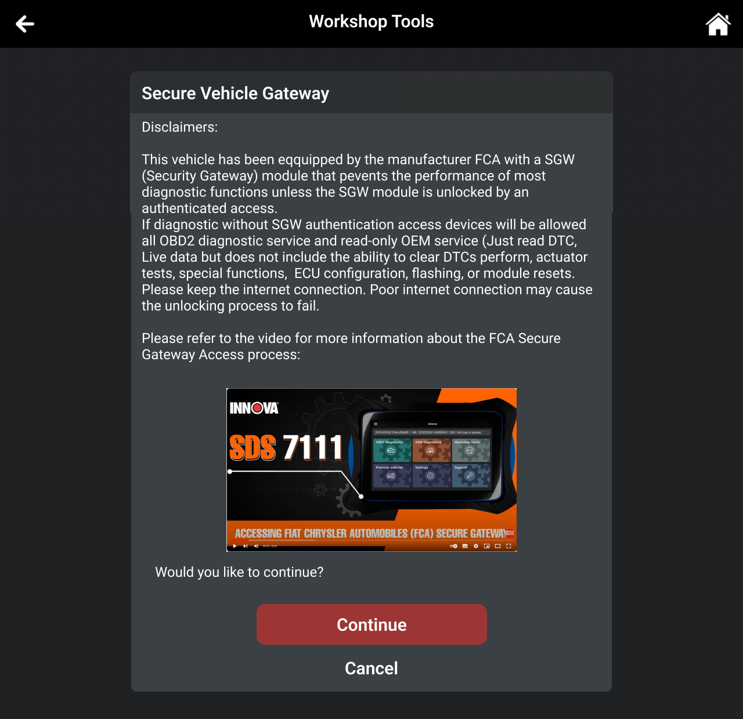
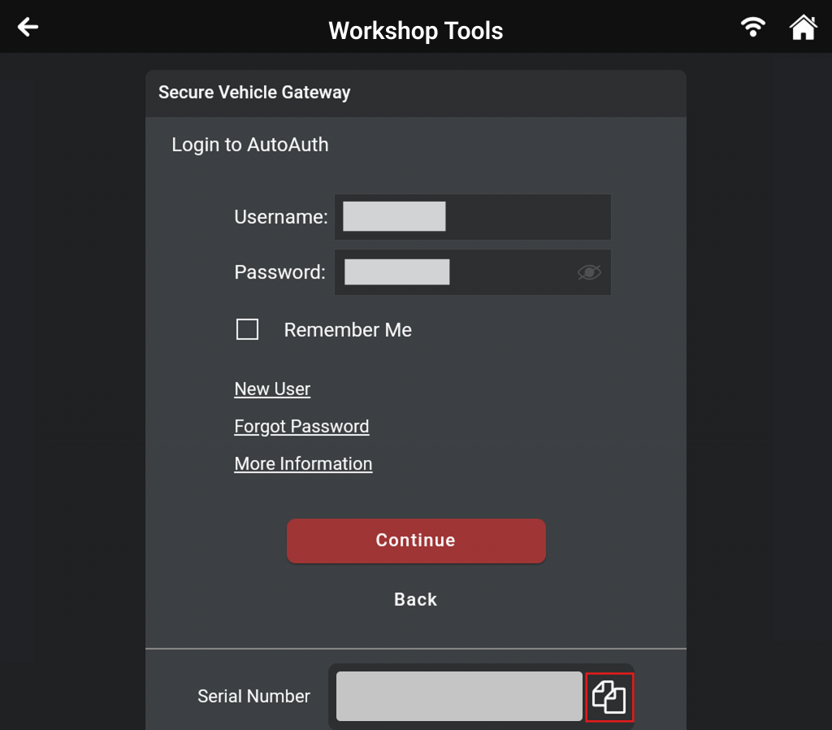
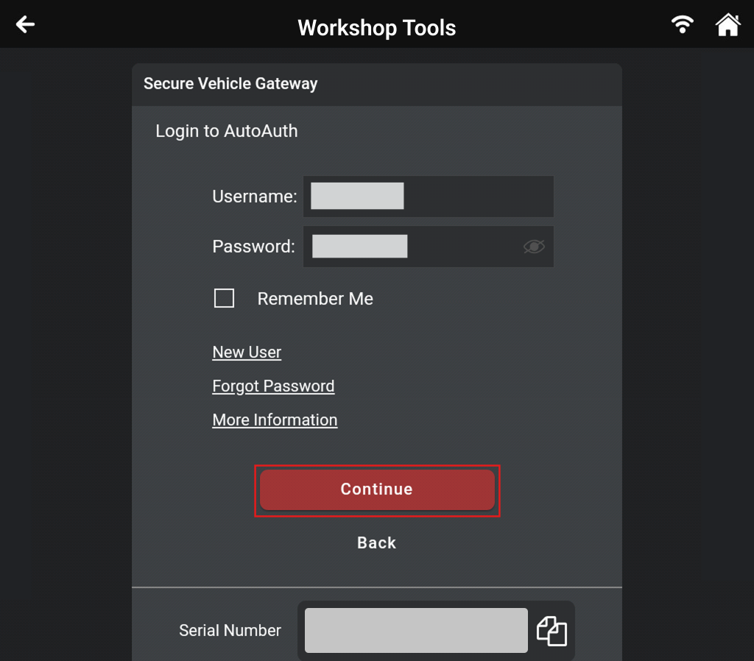
Step 2: Tap the Continue button, the Innova SDS50a will show the AutoAuth account login screen to unlock the SGW.
Step 3: Check for your tool Serial Number below the login section and copy it for later use.
A. Register an authorized AutoAuth account
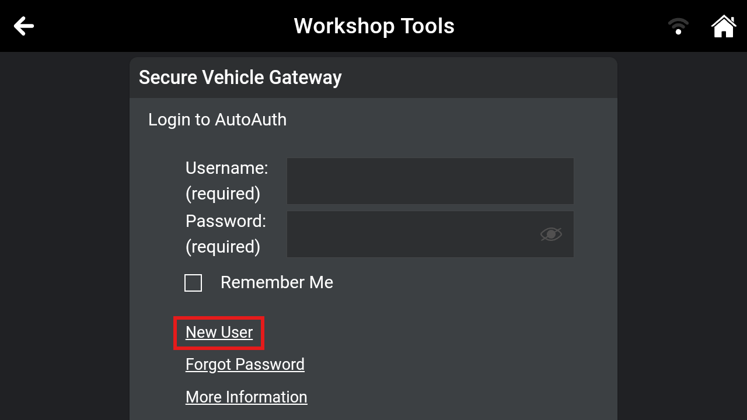
Step 1: Tap the New User button, the Innova SDS50a will automatically redirect to AutoAuth account registration page. If you already had an AutoAuth account, proceed to Step 7.
NOTE: You can also sign up for a new AutoAuth account using an external device, such as a laptop, smartphone, or tablet by visiting AutoAuth.
Go to AutoAuth and tap the Register button.
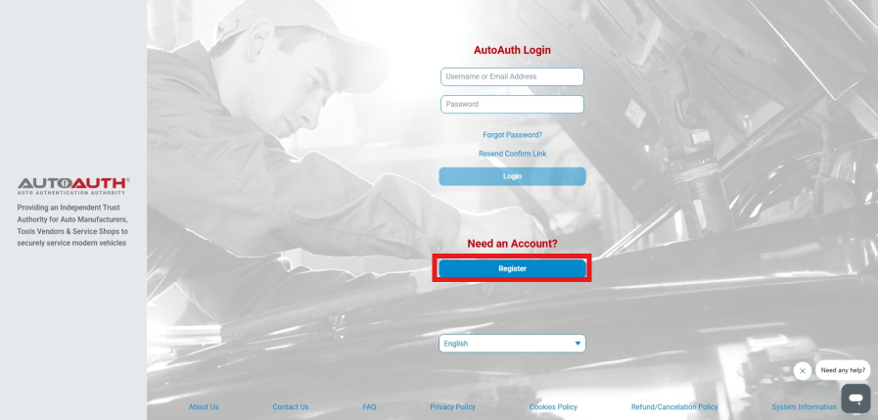
Fill in the individual information, and tab the Signup button to create your new account.
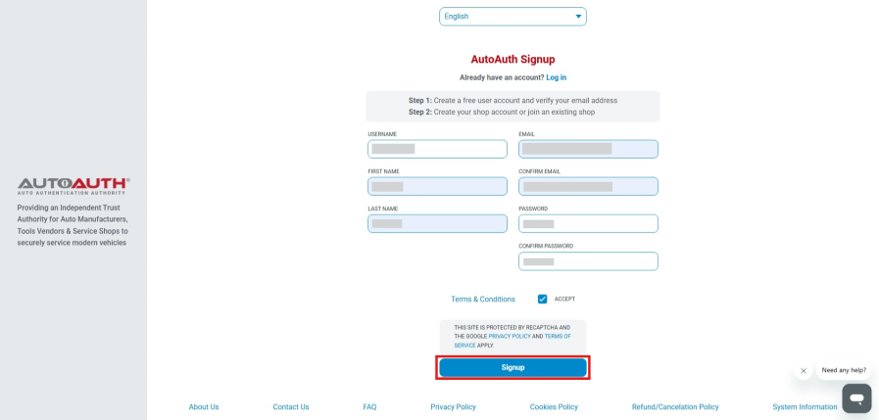
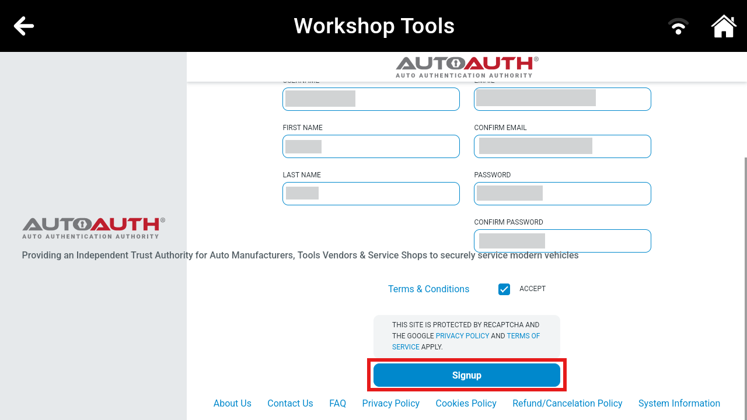
Step 2: Enter all required personal information and tap the Signup button.
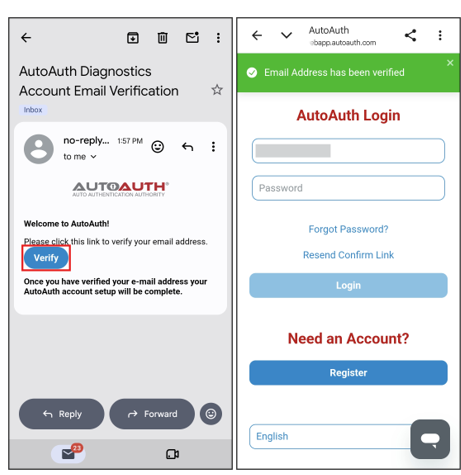
Step 3: After creating the account, verify it through the confirmation email sent to your inbox. Then, log in to the AutoAuth portal using your created account.
Step 4: Proceed with the AutoAuth account login screen on the Innova SDS50a. Enter the account credentials and tab Login button.
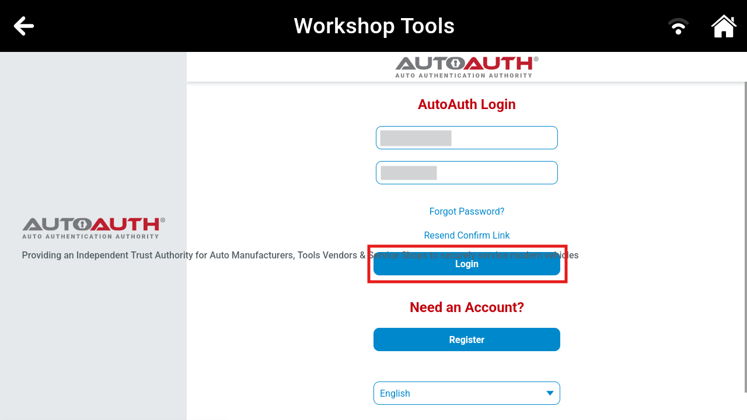
Step 5: Tap the Service Center Signup/Independent Technician Signup button in the For Service Centers & Independent Technicians plan.
NOTE: If you tap the User Profile button in the For Technicians plan, you will get your username, and with this username, your Service Center owner or manager needs to invite you to join the Service Center. Once invited, you will see a link on this page to join the Service Center.
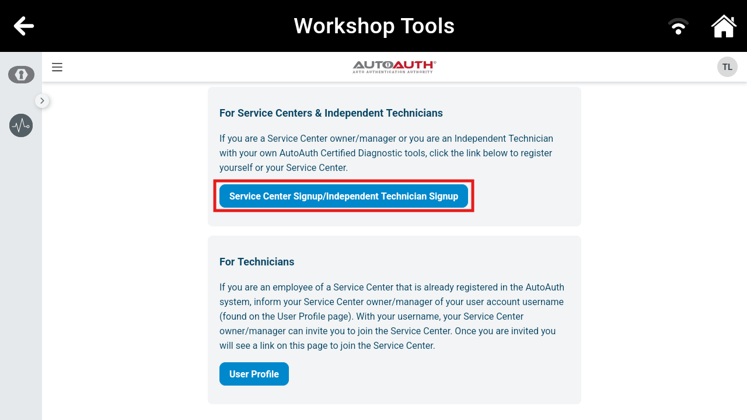
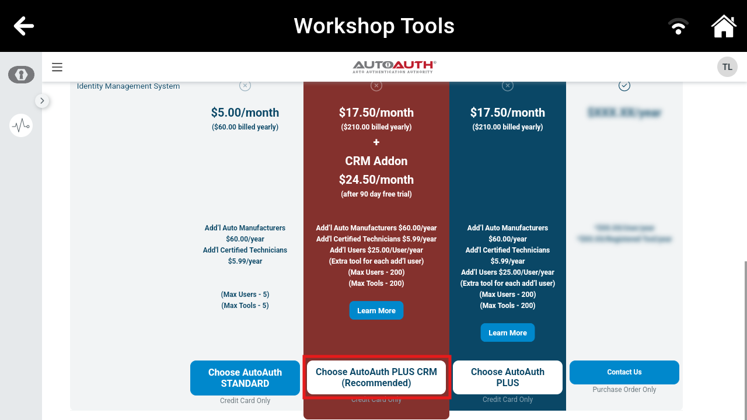
Step 6: AutoAuth requires an annual fee to maintain the service. Complete the required information and payment before using your account.
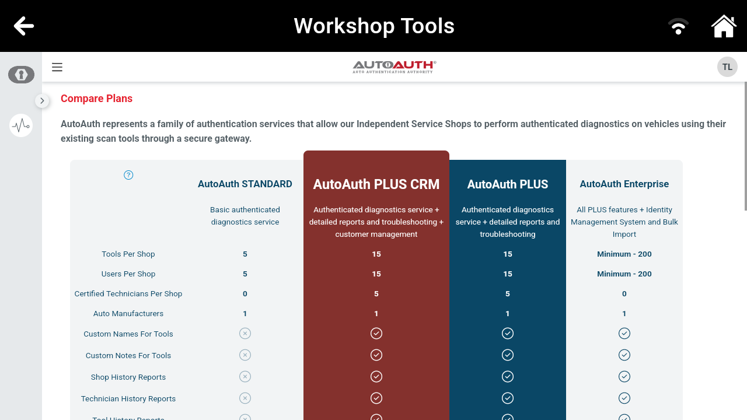
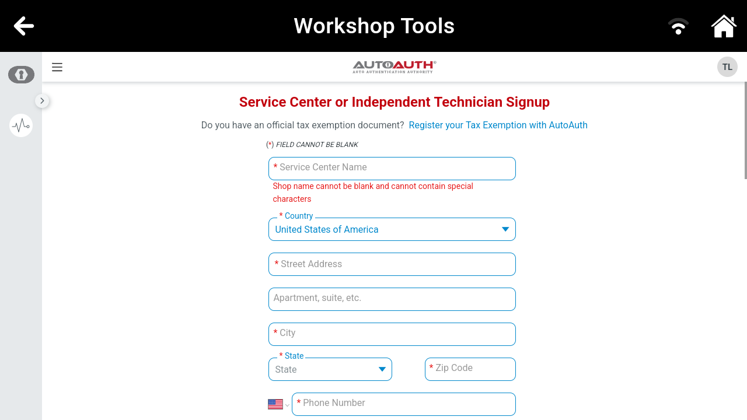
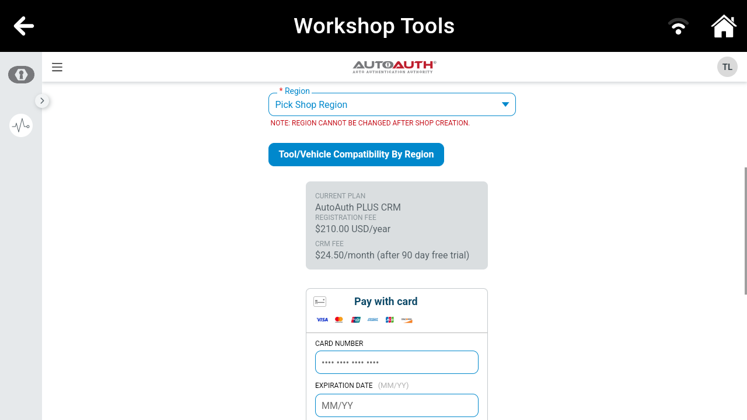
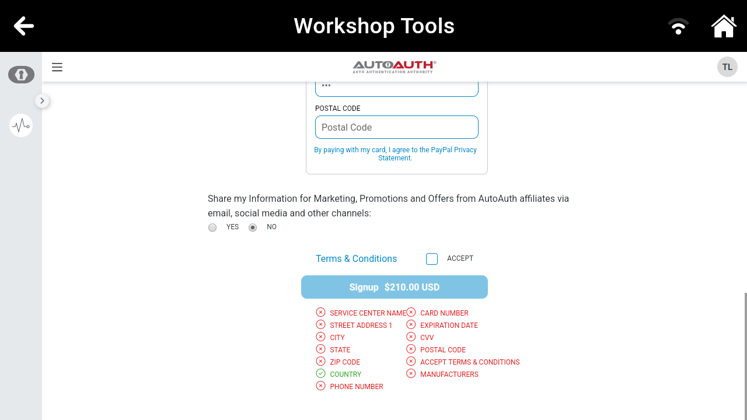
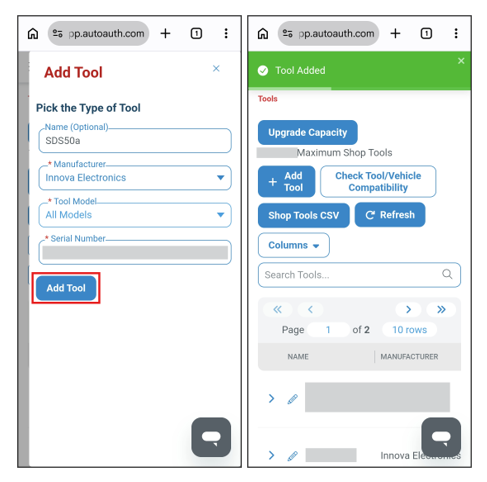
Step 7: Log in to the AutoAuth portal using your account. Then tap the Side Menu button in the upper left corner and tap Tools.
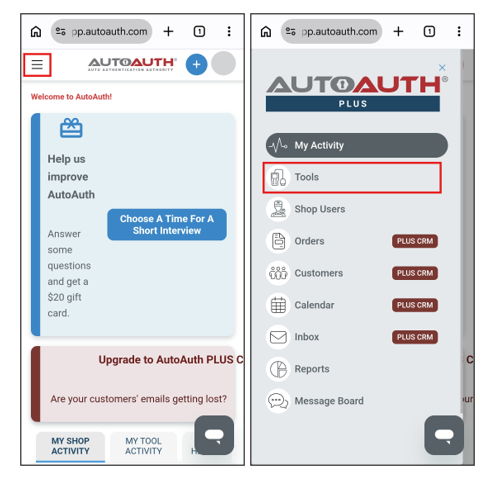
Step 8: Enter your tool's information:
- Name: Input your tool’s name.
- Manufacturer: Select Innova Electronics
- Tool model: Select All Models
- Serial number: Paste the GUID/Serial Number copied earlier on the Innova SDS50a’s AutoAuth account login screen
Then tap the Add Tool button. Your tool will appear in the registered list, and you can now come back to the Innova SDS50a to proceed with the SGW unlock procedure.
B. Unlock Secure Gateway
Step 1: Return to the AutoAuth login screen on the Innova SDS50a, enter your account details, and tap the Continue button.
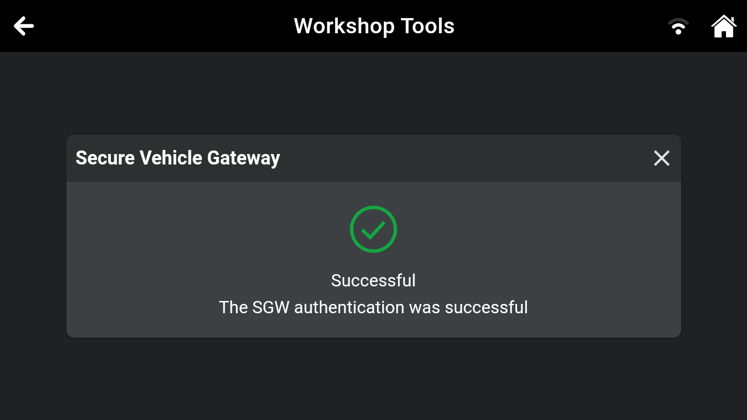
Step 2: Wait for the SGW to unlock. Once successfully unlocked, continue using the Innova SDS50a to perform the desired function.
Reference Video
This article applies to Firmware version 24.05.04

