Introduction
Description: Innova Electronics introduces a groundbreaking advancement in repair technology with the integration of Repair Info Powered by MOTOR featured on the Innova 7111 Smart Diagnostic System (SDS) Tablet scan tool.
Benefits: This feature is designed to provide comprehensive information on repairing and replacing parts affected by the most critical Confirmed/MIL Diagnostic Trouble Code (DTC) while offering extensive powertrain data. This article provides all the essential details about this powerful feature and explains how to access it using the SDS 7111.
Instructions
A. Access Repair Info MOTOR
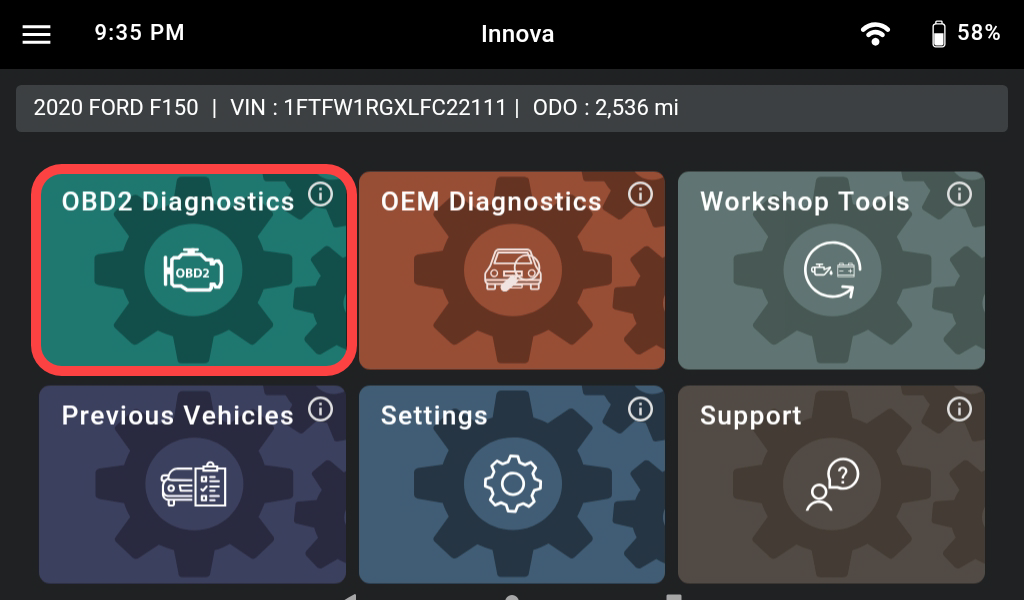
Step 1: Connect the Innova 7111 to the vehicle via the 16-pin Data Link Connector (DLC). Wait a moment for the AUTO-LINK process to be completed. After retrieving, the Innova 7111 gets general information such as VIN, vehicle information, and odometer. Next, select the OBD II Diagnostics section.
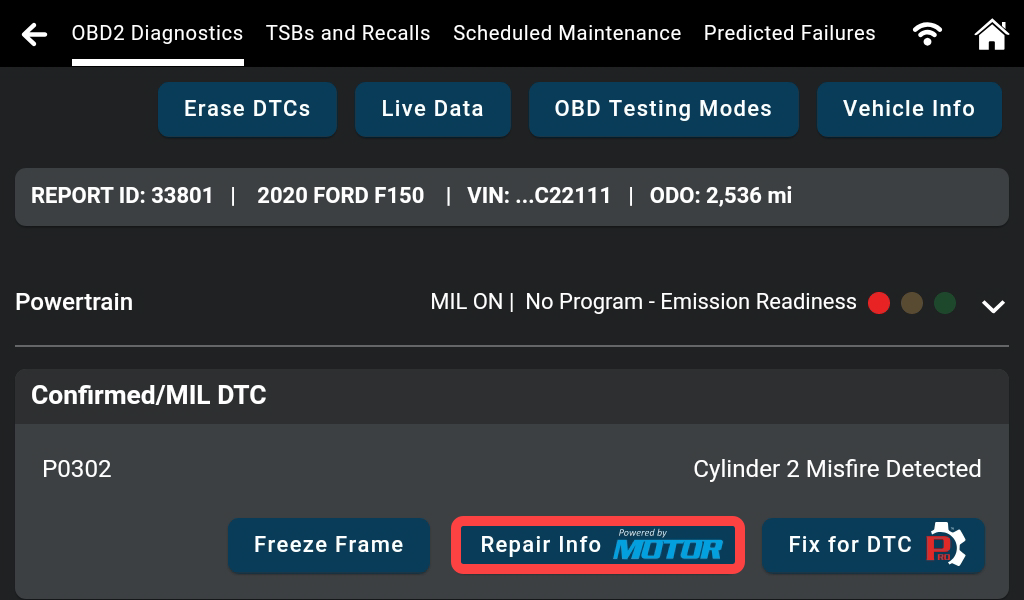
Step 2: After accessing the OBD II Diagnostics function, the Innova 7111 combines and displays data about the DTC, Drive Cycle information, Vehicle Info, etc. Tap the Repair Info MOTOR button.
B. Set Up an Account
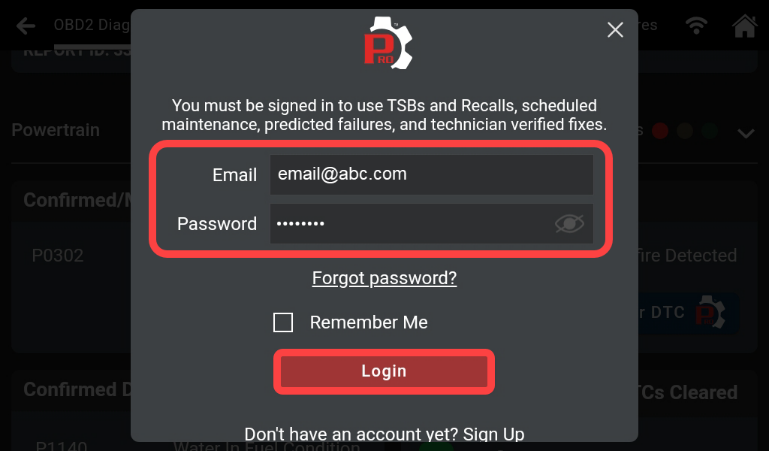
Step 3: If not already logged in to an RSPRO® account, the first step is to log in.
Enter the account information, then tap Login.
NOTE: If an account is logged in, proceed to Section C.
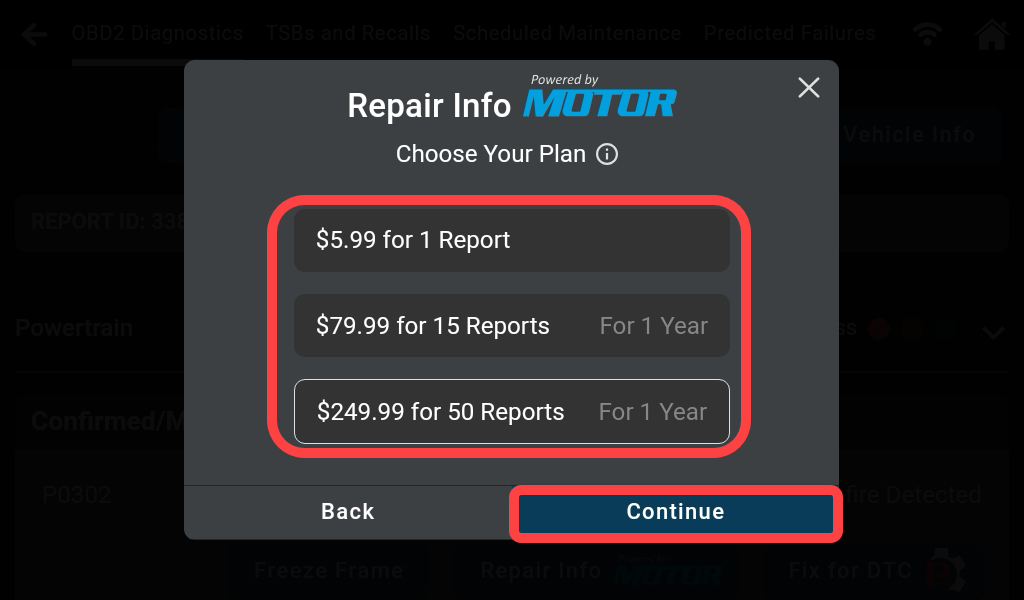
Step 4: Choose the desired plan, then tap the Continue button.
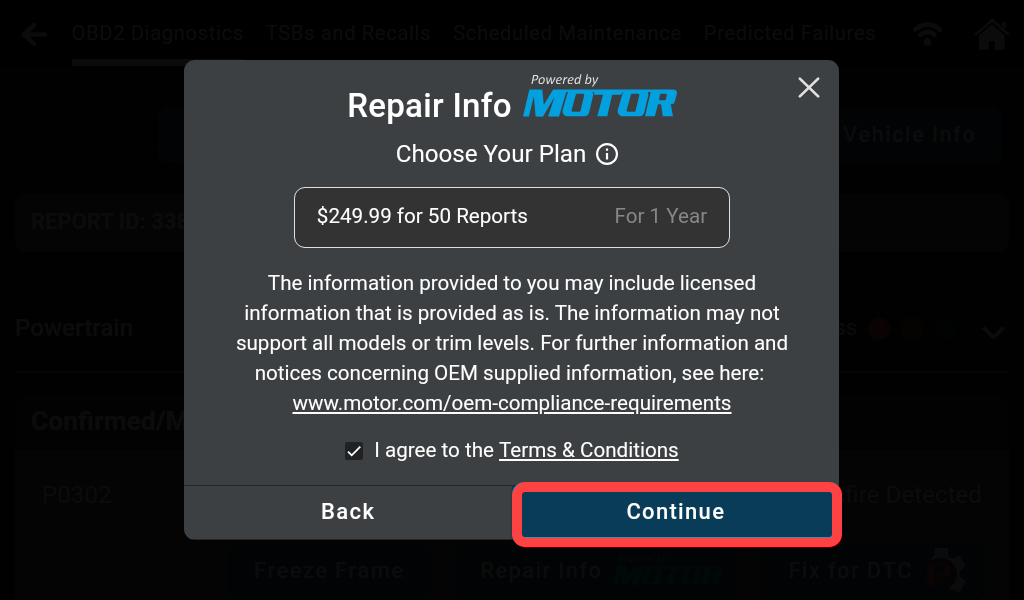
Step 5: Read the Terms & Conditions and select the checkbox to agree. Then tap Continue.
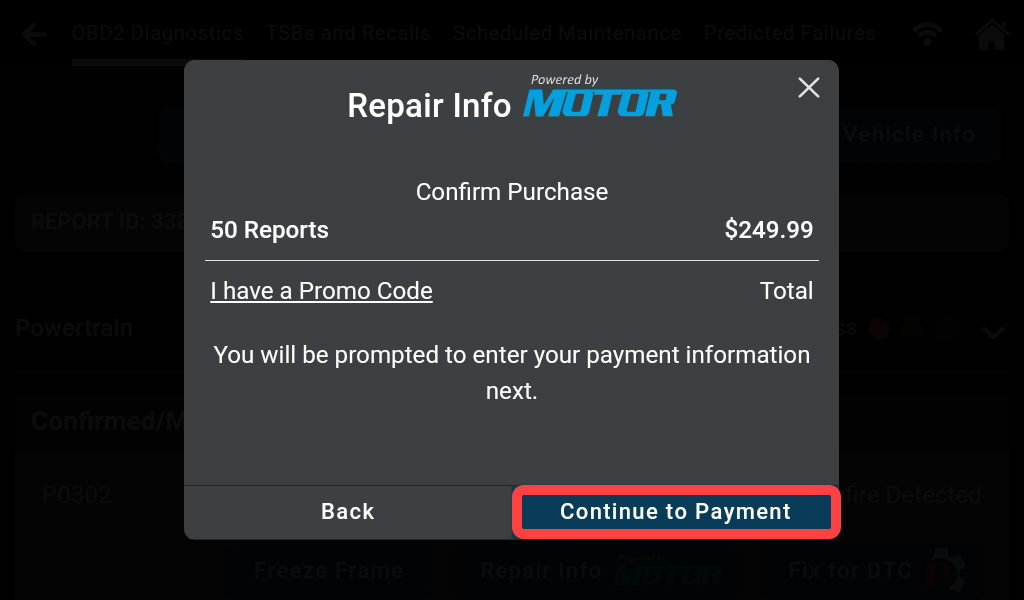
Step 6: Enter the Promo Code, then tap Continue to Payment.
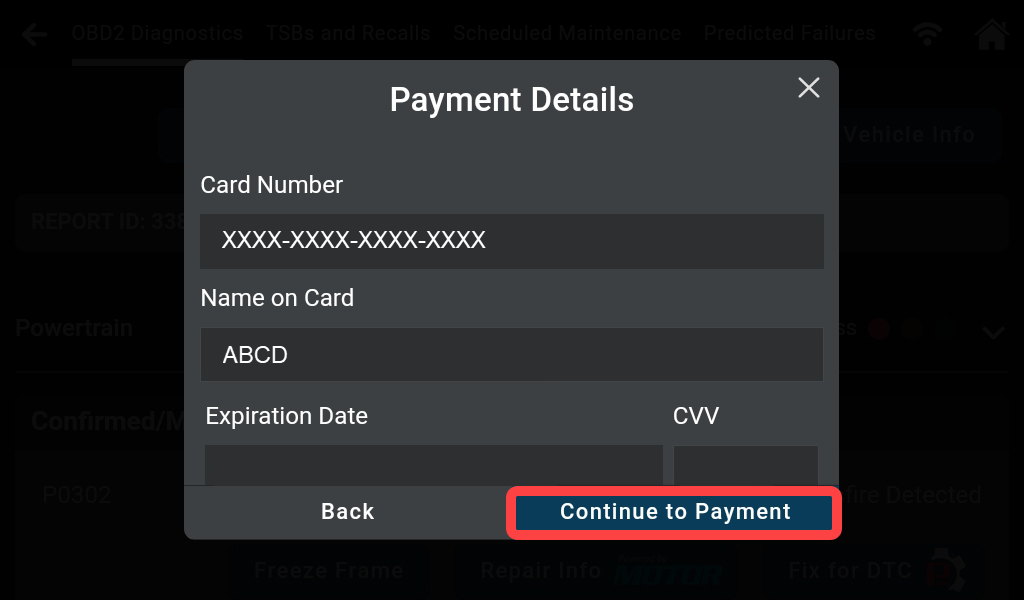
Step 7: Enter the payment information, then tap Continue to Payment.
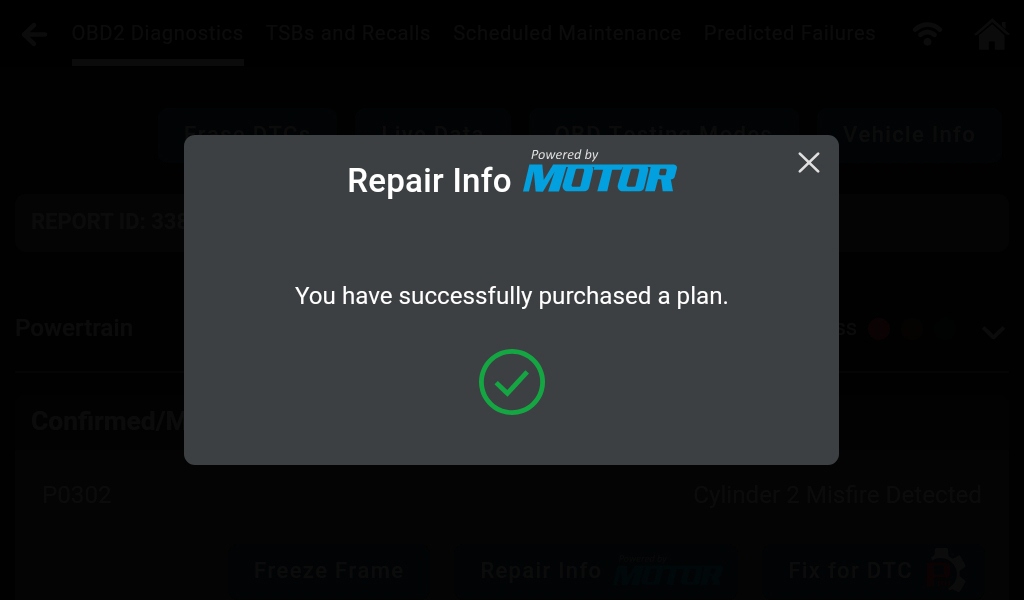
Step 8: When payment is successful, the Repair Info MOTOR feature is now ready to use. Tap X to continue.
C. Structure of Repair Info MOTOR
Step 9: Scroll down and tap the desired feature.
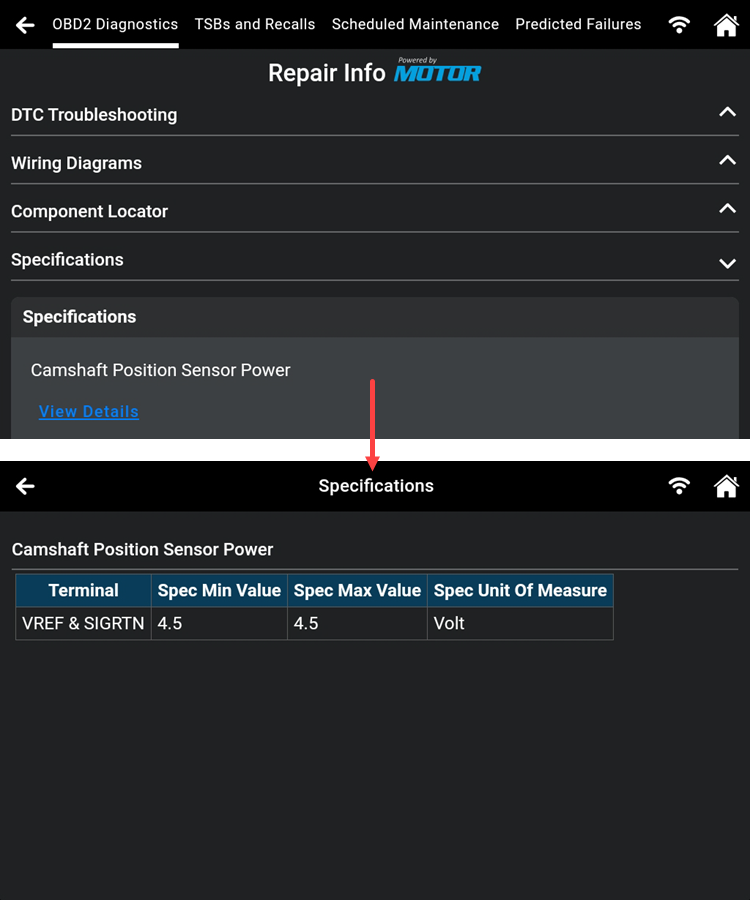
There are 4 main features: DTC Troubleshooting, Wiring Diagrams, Component Locator, and Specifications. See details below.
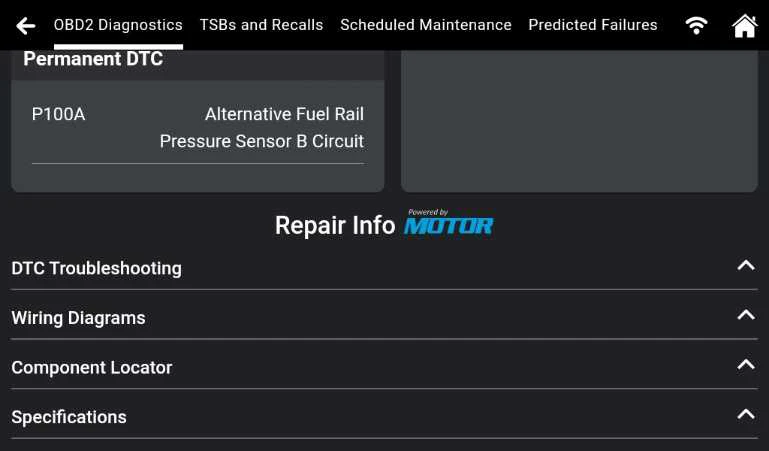
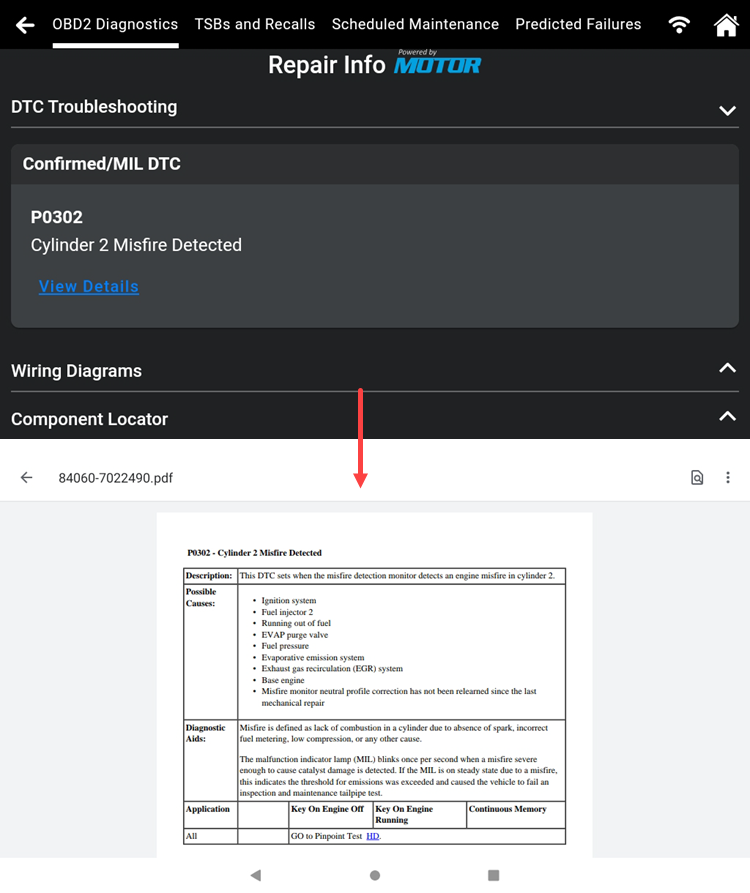
1. DTC Troubleshooting: Provides a detailed description, potential causes, diagnostic aids, and practical applications, extending comprehensive technical insights into components associated with this specific DTC.
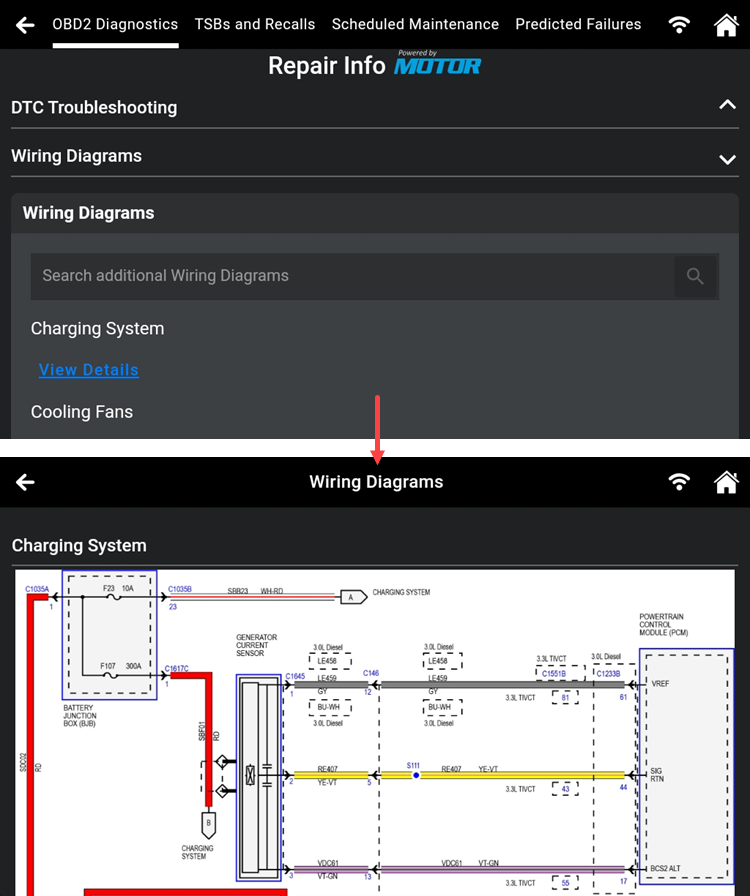
2. Wiring Diagrams: Provides comprehensive wiring diagrams for all necessary sensors and components, eliminating confusion during electrical repair.
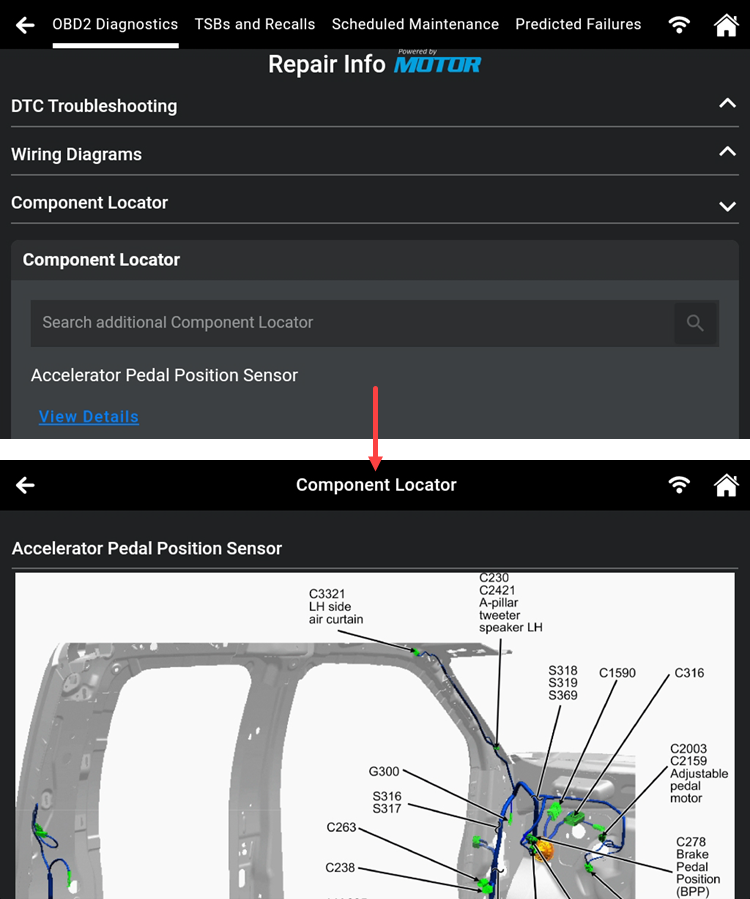
3. Component Locator: Based on the vehicle's actual position, the images are illustrated clearly and accurately, offering an intuitive perspective, and inclusive information on the exact locations of all relevant parts, ensuring efficient fixes.
4. Specifications: Delivers proper torque specifications, standards, maximum and minimum specifications, and extensive data on parameters essential for effective parts replacement.