Introduction
Description: To guide you on how to review the vehicle health reports using the Innova 7111 Smart Diagnostic System (SDS) tablet scan tool.
Benefits: It is essential to keep track of vehicle health reports. The purpose of a vehicle health report is to help the vehicle owner identify any potential issues, take a proactive approach to maintenance, enhance performance, and ensure the vehicle operates safely and efficiently.
Instructions
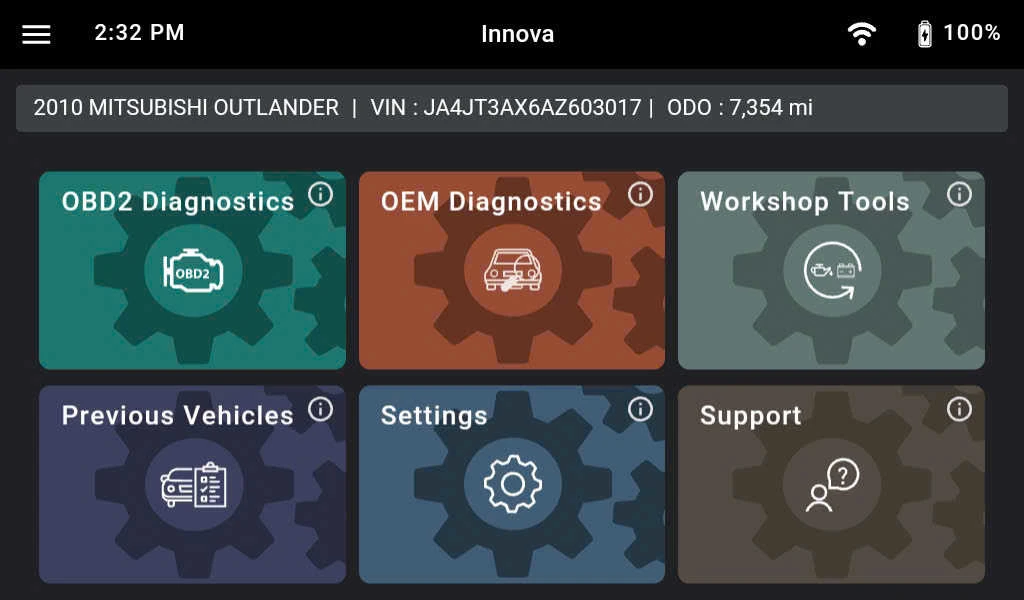
Step 1: Turn on your Innova 7111 by holding the power button for a few seconds (no need to connect the tool to your vehicle). Then tap the Previous Vehicles section.
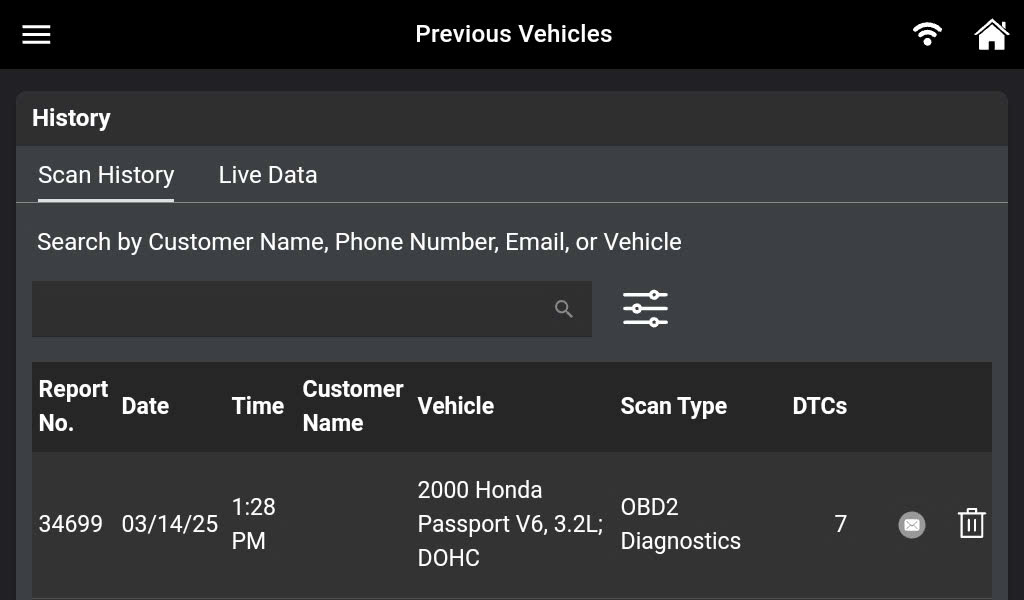
Step 2: The Innova 7111 will display a list of cars that have been previously checked. Tap the desired report ID.
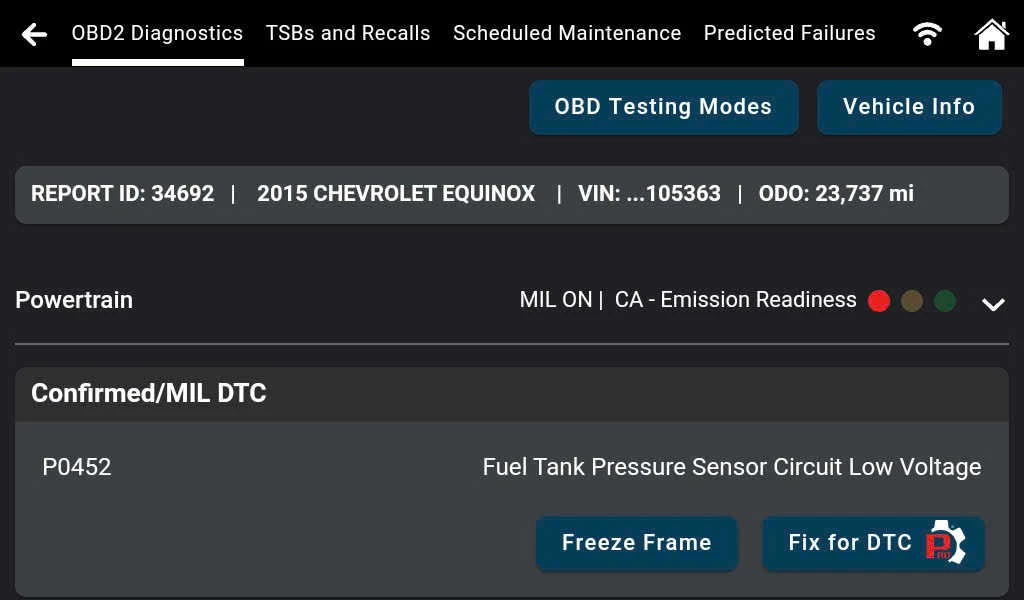
Step 3: For the OBD II Diagnostics report, you can check the status of several emissions-related systems, including Malfunction Indicator Light (MIL), or Check Engine Light, status, Diagnostic Trouble Codes (DTCs), emission monitors, and vehicle info. In addition, you can also create a report for other helpful information like recommended Fixes, Technical Service Bulletins (TSBs) and Recalls, Scheduled Maintenance, and Predicted Failures.
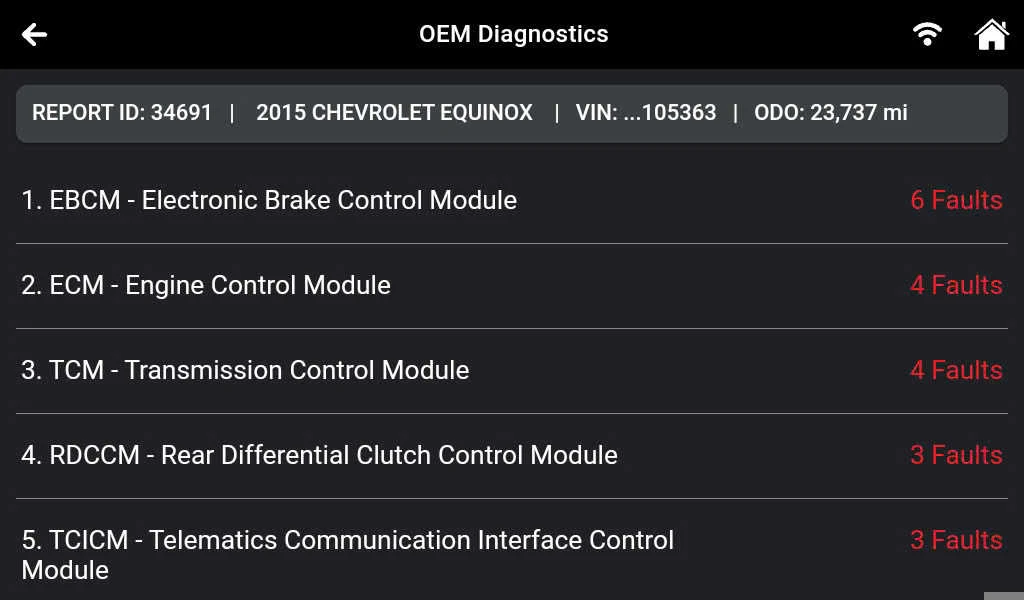
For the type of OEM Diagnostic scan, you can review all Original Equipment Manufacturer (OEM) Trouble Codes. The Innova 7111 will display a list of the systems, system status, and DTCs.