Introduction
The INNOVAPRO™ SDS10 stays current through three distinct types of updates: Firmware (FW), Bootloader (BL), and the OEM Database (DB). Keeping all three current ensures the tool communicates correctly with the widest range of vehicle modules, supports the latest OEM-specific diagnostic and service procedures, and maintains compatibility with the RepairSolutionsPRO® (RSPRO®) app as new vehicle coverage is added.
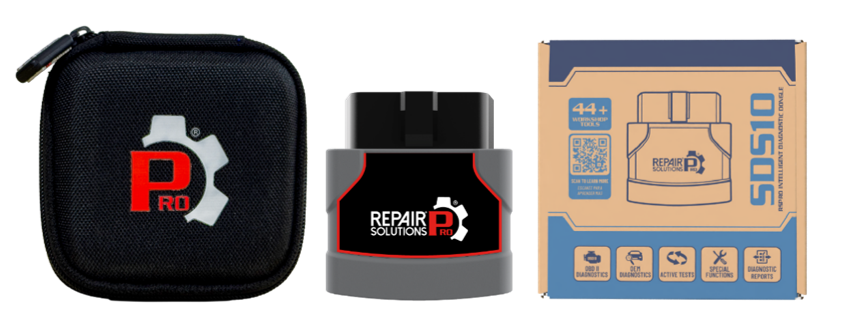
All the updates are checked automatically during the normal connection workflow, immediately after the tool pairs and after vehicle information is retrieved. This article walks through what each update covers and how to complete the update sequence when one is available.
Before You Begin
Confirm the following before starting an FW/BL/DB update:
SDS10 paired and connected: The tool must already be successfully paired to the RSPRO® app. Refer to the First Setup and Main Button Functions article for the initial pairing procedure if this has not been completed.
Stable internet connection: FW/BL/DB updates download data to the mobile device. A stable Wi-Fi or cellular connection prevents an interrupted download.
Uninterrupted session: Do not close the RSPRO® app or disconnect the SDS10 from the vehicle while an update is in progress.
Adequate vehicle power: Keep the vehicle ignition in Key On, Engine Off (KOEO) for the duration of the updates so the SDS10 maintains consistent power.
NOTE: A Green Blink on the SDS10’s LED indicator confirms a firmware update is actively in progress. Do not unplug the tool while this pattern is displayed.
Update FW/BL/DB Procedure
Update FW/BL
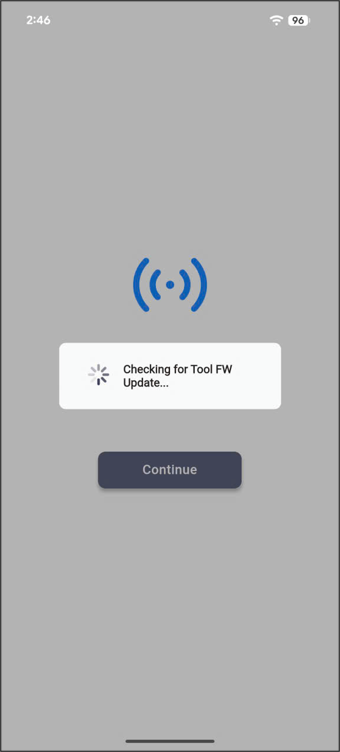
Step 1: Once the SDS10 has been paired successfully, tap Continue. The RSPRO® app automatically checks for an available tool FW update.
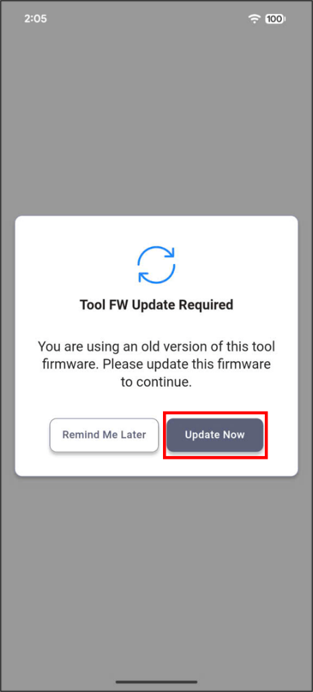
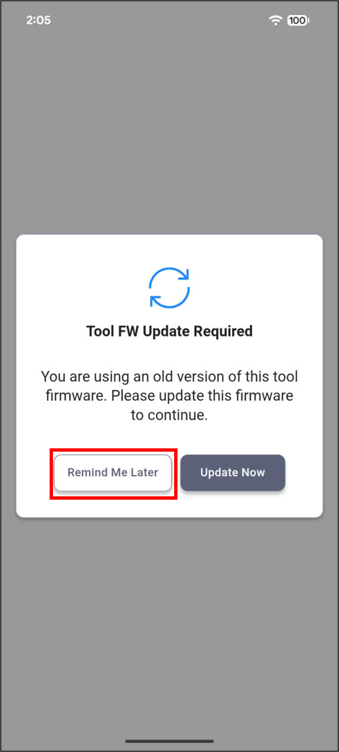
Step 2: If a tool FW update is available, a notification pop-up appears on screen. Tap Update Now to start the update process, or tap Remind Me Later to delay the update to another time.
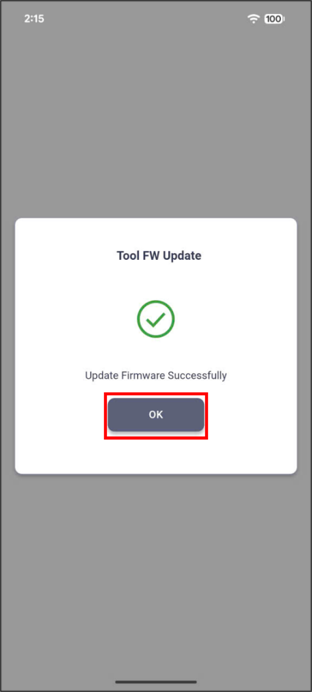
If you tap Update Now, the FW update process starts. Do not close the app until the process is complete. Once finished, a notification screen displays “Update Firmware Successfully.” Tap OK to proceed to the next screen, where the app retrieves vehicle information as usual.
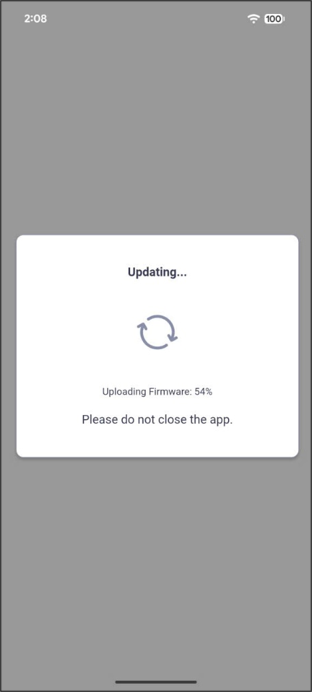
If you tap Remind Me Later, the app automatically continues to the next screen, where it retrieves vehicle information as usual. The FW update notification will reappear on a future connection.

Update DB
Step 1: Once the vehicle information has been retrieved successfully, the app automatically checks for an available OEM DB update relevant to that vehicle.
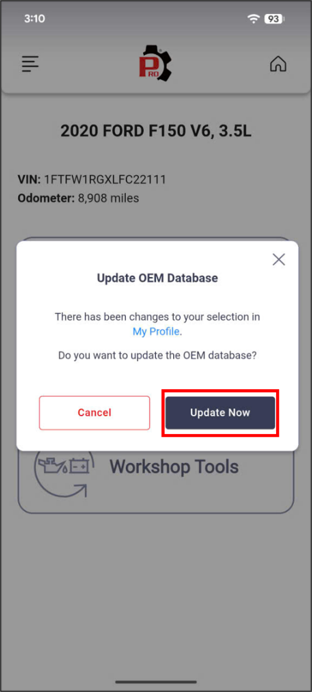
Step 2: If a database update version is available, tap Update Now to begin the update sequence, or tap Cancel to postpone the update.
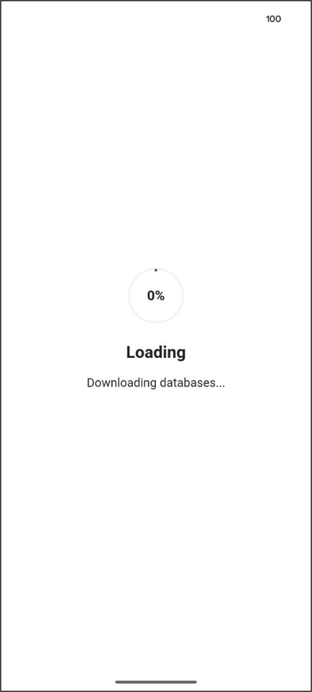
If you tap Update Now, the DB update begins downloading. Once complete, a notification screen confirms “Data has been downloaded.”
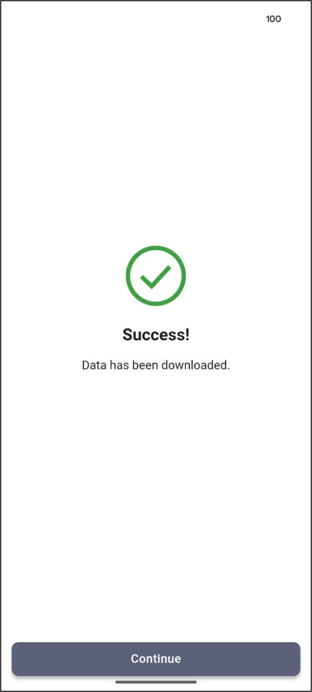
If you tap Cancel, the app returns to the Home Screen. The DB update notification will reappear on a future connection to the same or another vehicle requiring that DB version.
Conclusion
Keeping the SDS10’s FW, BL, and OEM DB up-to-date ensures the tool communicates reliably with vehicle modules and supports the latest OEM-specific diagnostic coverage available through the RSPRO® app. Both update checks happen automatically - FW and BL immediately after pairing, and the DB immediately after vehicle information is retrieved - so no manual search for updates is required.
For additional guidance on first-time setup, pairing, or other INNOVAPRO™ SDS10 functions, visit the Support section at pro.repairsolutions.com.
Disclaimer
This content is subject to change without notice. The information has been carefully reviewed and is believed to be accurate based on our research and findings. It is intended as a guide, not a definitive procedure. We accept no responsibility for inaccuracies. Vehicle-specific test settings may be required.
Copyright 2026 IEC. All rights reserved.

