Introduction
Every diagnostic tool occasionally runs into an unexpected result - a function that will not complete, a code that will not clear, or a screen that behaves differently than expected. The RepairSolutionsPRO® (RSPRO®) app includes a built-in Report an Issue function so SDS10 users can flag exactly what went wrong, with enough detail for the support and engineering teams to investigate efficiently.
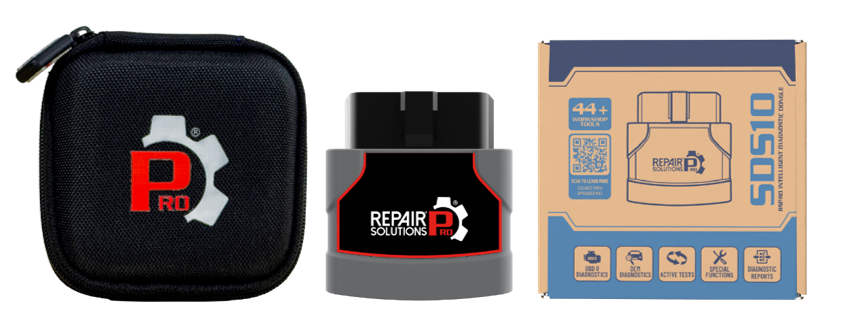
This article walks through the complete Report an Issue procedure, including the optional Start Data Capture feature that records the failure as it happens - giving support teams the clearest possible picture of the problem.
Before You Begin
Confirm the following before starting an issue report:
Know what failed: Identify the specific function, screen, or diagnostic step where the issue occurred. This makes the reporting process faster and more useful.
Vehicle Identification (VIN) ready (if not paired): Have the vehicle’s Year, Make, Model, Engine (YMME) or VIN on hand if the SDS10 is not currently paired.
Tool name and GUID (if multiple tools): If more than one SDS10 or other RSPRO®-compatible tool is registered to the account, confirm which tool is associated with the issue before selecting it in the report.
Time to reproduce the issue: The Start Data Capture step works best when the failure can be reproduced step by step immediately after starting the capture.
Report an Issue Procedure
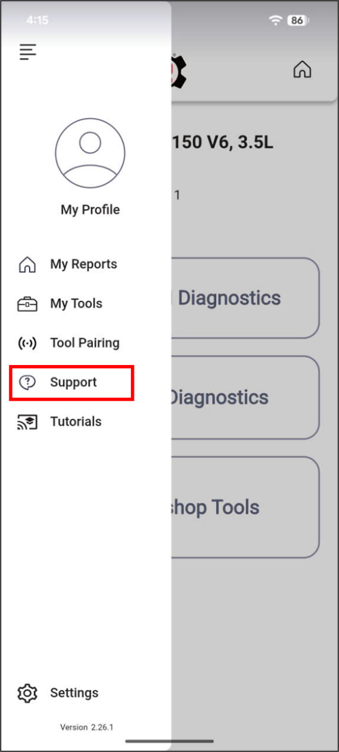
Step 1: Once the tool has been successfully paired with the app and vehicle information has also been retrieved, open the left-side menu panel and tap Support.
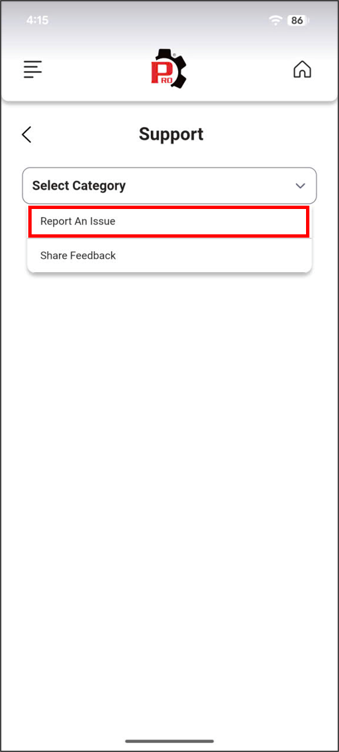
Step 2: Tap Select Category, then tap Report An Issue from the drop-down menu.
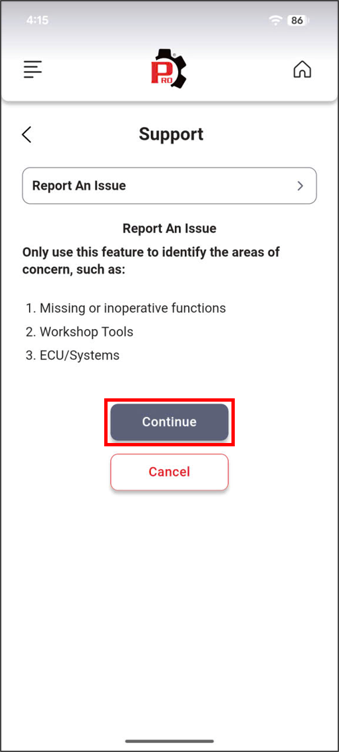
Step 3: A confirmation request for the area of concern appears. Confirm the relevant concerns, then tap Continue.
Suggested feasible areas of concern include:
Missing or inoperative functions
Workshop Tools
ECU/Systems
NOTE: If the SDS10 is not currently paired with the app, a reminder message pops up requesting app pairing before reporting the issue - or the option to skip pairing and continue.
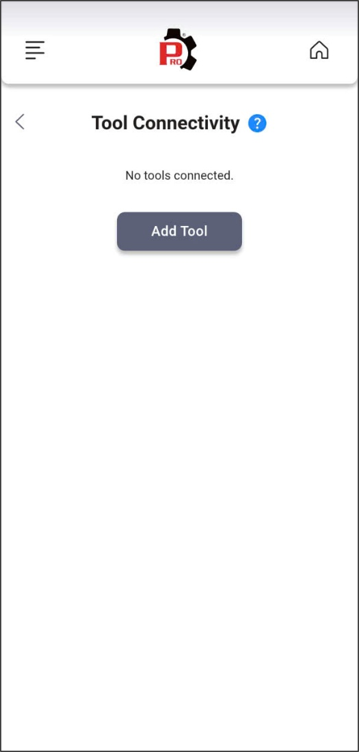
If you tap Continue, you are directed to the Tool Connectivity screen to pair the SDS10 before continuing the report.
If you tap Skip Pairing, you are directed through the main screen of the Reporting Issue function, and provide vehicle identification manually in Step 4.
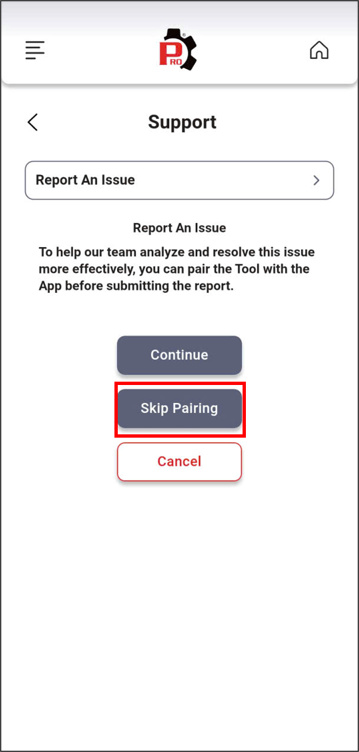
If you tap Cancel, the Issue Reporting process is canceled, and no report is started.
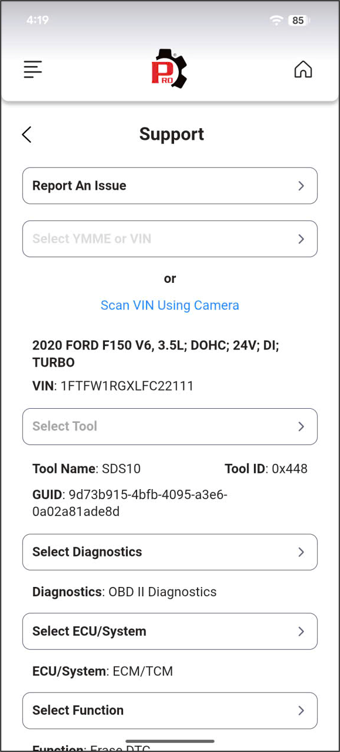
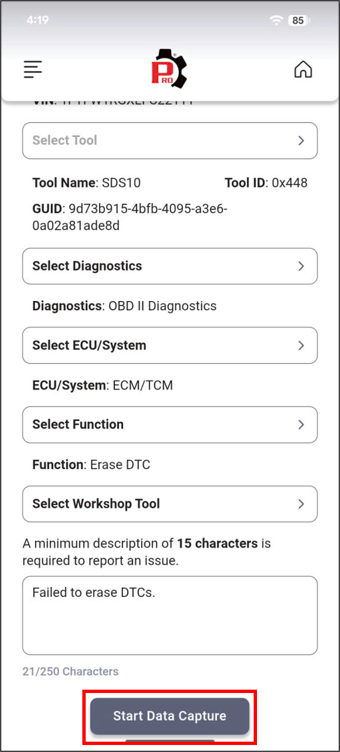
Step 4: On the main function screen, complete the following fields to report the issue:
| Field | Required When | Description |
| YMME or VIN | Tool not paired | Select Year, Make, Model, Engine (YMME), or enter the VIN manually, or scan the VIN using the camera. Only required if the SDS10 is not paired to the app. |
| Tool | Always | Select the tool associated with the issue. Confirm the tool name and GUID are correct, especially if multiple tools are registered to the account. |
| Diagnostics | Always | Select the diagnostic area involved: OBD II Diagnostics, OEM Diagnostics, or Workshop Tools. |
| ECU / System | Depends on Diagnostics | Select the specific ECU or system involved, based on the Diagnostics selection above. |
| Function | Depends on ECU/System | Select the specific diagnostic function involved, based on the ECU/System selection above. |
| Workshop Tool | If applicable | Select the specific Workshop Tool function, if the issue relates to one. This field is independent of all previous selections. |
| Issue Description | Always | Enter a description of the issue. Minimum 15 characters, maximum 250 characters. A short, specific description (what you expected vs. what happened) is more useful to support than a long narrative. |
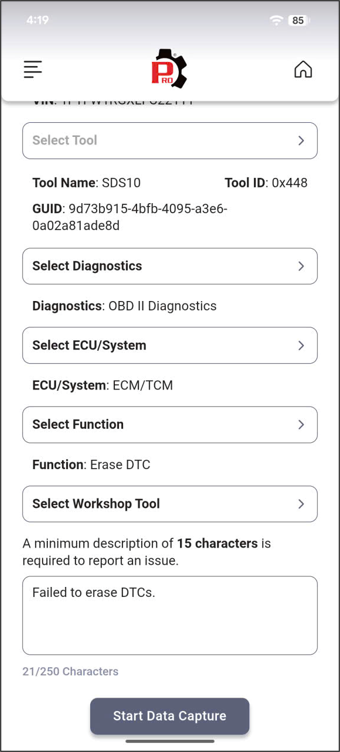
Step 5: After completing the fields above, tap Start Data Capture and begin reproducing the entire failure process. This gives the support and engineering teams a recorded sequence of exactly what happened, which significantly speeds up issue tracking and resolution.
A footer section displays while the capture is active, confirming the capture is in progress. This footer remains visible throughout the entire process, so it is always clear that data is being recorded.
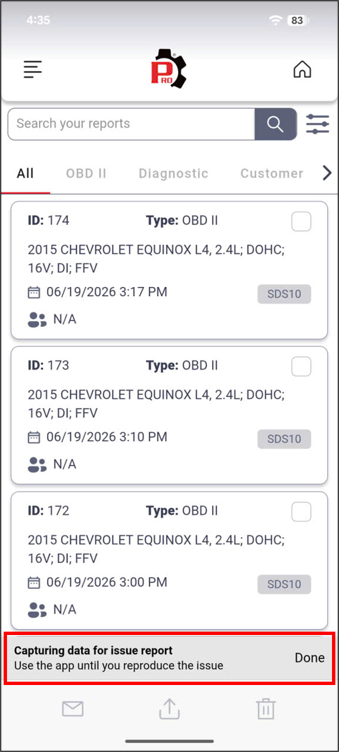
NOTE: Once Start Data Capture is active, walk through the same steps that caused the original issue, in the same order. A clean, deliberate reproduction is more useful to support than a long or repeated attempt.
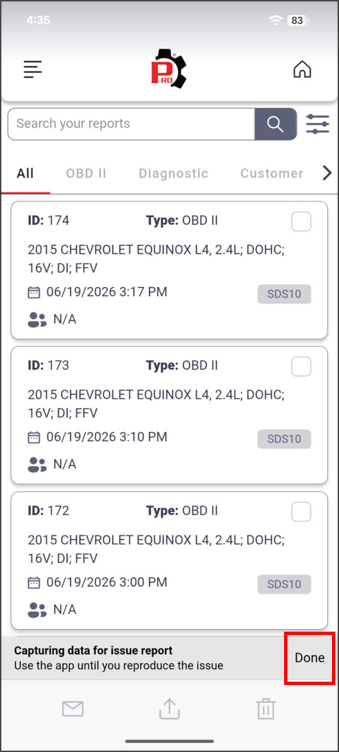
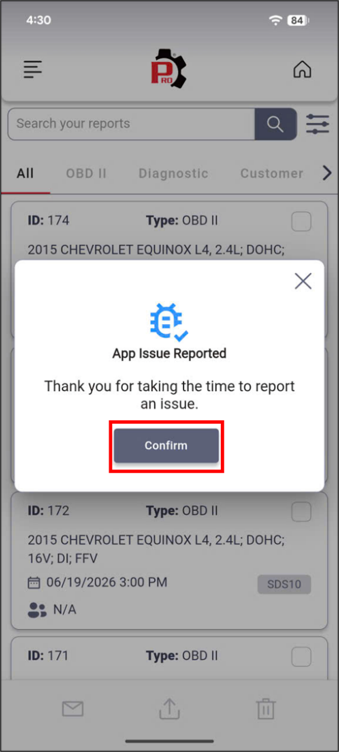
Step 6: Once the failure has been reproduced, tap Done on the data capture header section. A notification appears confirming the report has been submitted. Tap Confirm to finish the reporting process.
Conclusion
Report an Issue gives technicians a direct way to flag unexpected tool or app behavior, whether the SDS10 is currently paired or not. Accessed from the Support menu, the function walks through selecting the relevant area of concern, identifying the tool and vehicle, narrowing down to the specific diagnostic function involved, and describing what went wrong.
The Start Data Capture step is what makes a report genuinely actionable - by recording the failure as it happens, the support and engineering teams can see exactly what occurred rather than relying on a written description alone. A clear, well-reproduced report leads to a faster diagnosis of the underlying app or tool issue.
For additional guidance on first-time setup, pairing, or other SDS10 functions, visit the Support section at pro.repairsolutions.com.
Disclaimer
This content is subject to change without notice. The information has been carefully reviewed and is believed to be accurate based on our research and findings. It is intended as a guide, not a definitive procedure. We accept no responsibility for inaccuracies. Vehicle-specific test settings may be required.
Copyright 2026 IEC. All rights reserved.

