How to Update INNOVAPRO Electrical Testers
Introduction
Keeping the firmware up to date gives your INNOVAPRO electrical tester better performance, added functions, and support for the latest vehicle systems.
This page shows how to update the firmware from a computer with the Electrical Tester Updater.
Tool Coverage
| Tools | Tool ID |
|---|---|
| BA200 Battery Tester Module | (0x1001) |
| BA201 Battery Tester | (0x0431) |
Download the Electrical Tester Updater
To update your tool, first download and install this application on your computer.


System Requirements:
- PC: Windows 10 (64-bit editions) / Windows 11
- Mac: macOS 12.3 – 14.5
Procedure
Step 1: Open the Electrical Tester Updater application.
Make sure your computer is connected to the internet so the application can check for the latest firmware version.

Step 2: Connect the tool to the computer with the USB Type-C connection. Wait a few seconds for the application to detect the tool.
*Note: Use a USB Type-C data cable
- Data cables: do both — charge the tool and transfer data. Use a USB Type-C data cable for the update.
- Charging cables: can only charge the tool, but cannot transfer data. These are commonly called ‘charge-only’ cables.
A charge-only cable cannot transfer data, so the tool may not be detected. If the application does not detect the tool, check the cable first.
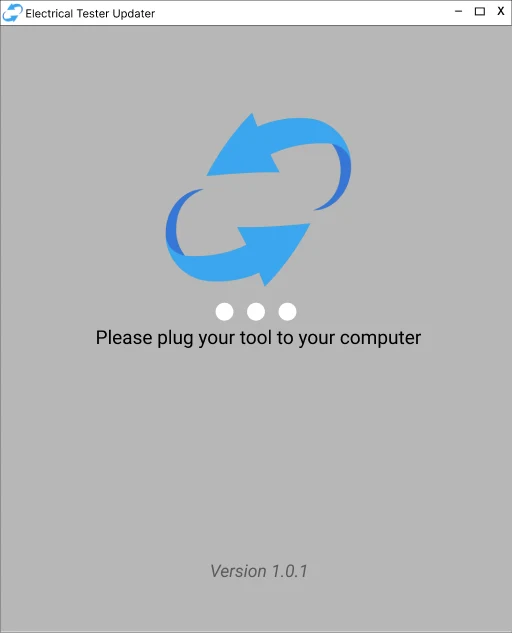
Step 3: Once the tool is detected, the Electrical Tester Updater shows the tool information and, if a new firmware version is available, the Update option. Select Update Now to start the update.
*Note: Already on the latest firmware
If the application shows ‘No updates available’, the tool is up to date. Close the application and disconnect the tool.

Step 4: The Electrical Tester Updater starts downloading the new firmware version and updating your tool.
*Note: Keep the tool connected
Do not unplug the tool, close the application, or let the computer sleep while the update is running. If the update is interrupted, the application shows the last progress percentage with an update error message — disconnect and reconnect the tool, then start the update again.

Step 5: The application shows a notification when the update is complete.

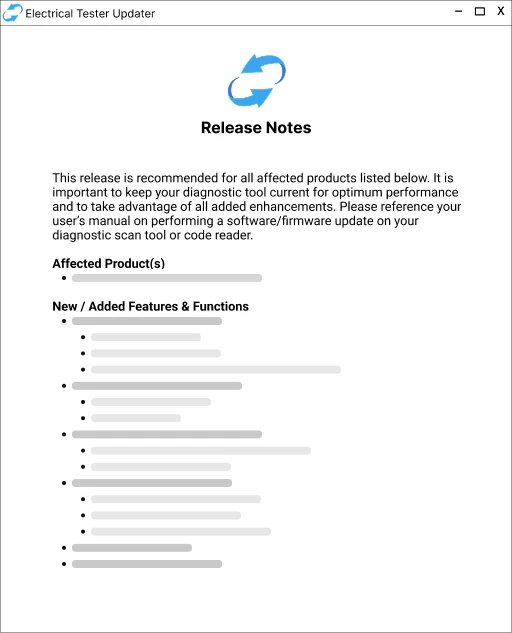
Step 6: Select the Release note button to read the new version information.
Troubleshooting & FAQs
-
What do I need to update my electrical tester?
Before updating your electrical tester, make sure you have:
- A computer running a supported version of Windows or macOS.
- The latest version of the Electrical Tester Updater (ETU).
- A stable internet connection to download available updates.
- A USB - type C cable that supports data transfer.Keep the tester connected until ETU confirms the update is complete.
-
Why doesn't the Electrical Tester Updater detect my tester?
If ETU does not detect your electrical tester, try the following steps:
1. Make sure the tester is connected directly to your computer using a USB data cable.
2. Check that the USB cable supports data transfer, not just charging.
3. Try a different USB port or cable.
4. Close and reopen ETU, then reconnect the tester. If the issue continues, contact Customer Support for assistance.
Note: Avoid using USB hubs or adapters when connecting the tester. -
Why can't I install the Electrical Tester Updater on my computer?
To troubleshoot ETU installation issues, follow these steps:
1. Make sure your computer meets the Windows or macOS system requirements.
2. Download the latest ETU installer from the official support website.
3. Make sure you have permission to install software.
4. Close other running installations and try again.
5. Restart your computer if the issue continues.
If you receive a security warning or installation error, contact Customer Support for assistance. -
Why can’t I download the installer file?
If you cannot download ETU, try the following steps:
1. Make sure your computer has an internet connection.
2. Download ETU from the official product support website.
3. Check your browser's Downloads folder or download history.
4. If your browser blocks the download or displays a security warning, verify that you are using the official download link.
5. If the download continues to fail or a security warning remains, contact Customer Support.
Note: Only install ETU from an official website, or trusted source. -
What should I do if the software update fails?
If the software update fails, follow these steps:
1. Check the error message displayed in the ETU software.
2. Make sure your internet connection is stable and the USB cable is properly connected.
3. Close and reopen ETU, then reconnect your electrical tester.
4. Try updating the tester again.
If the issue continues, contact Customer Support for assistance.
Note: Do not disconnect the tester or turn off your computer while the update is in progress. -
How do I know my electrical tester was updated successfully?
Once the firmware update is complete, ETU will display a "Completed" message. To confirm the update, check the firmware version on your tester and make sure it matches the latest version listed in the release notes.
-
How do I check for software updates for my electrical tester?
To check for available updates:
1. Install and open the Electrical Tester Updater (ETU) on your computer.
2. Connect your electrical tester using a USB data cable.
3. Follow the instructions displayed in ETU.
If a firmware update is available, ETU will notify you and provide instructions to complete the update.
Note: Do not disconnect the tester during a firmware update. -
Can I update my electrical tester using the OBD Tool Updater?
No. Electrical testers and OBD II scan tools use different update software. Use the Electrical Tester Updater (ETU) for supported electrical tester models. The OBD Tool Updater is designed for supported OBD II scan tools and code readers. Always use the updater specified for your product model.
-
What should I do if my electrical tester stops working after a firmware update?
What should I do if my electrical tester stops working after a firmware update?
If your electrical tester stops working after a firmware update, try the following steps:
1. Check whether ETU reported that the update completed successfully.
2. Check the tester's power supply or battery condition, if applicable.
3. Check whether the tester powers on or displays any information.
If the tester will not power on, is not recognized by ETU, or does not operate correctly, contact Customer Support.
Note: Do not repeatedly attempt firmware updates unless instructed by ETU or Customer Support.
Have Questions?
Please do not hesitate to contact us for assistance.
Our U.S.-based customer service team is ready to assist you.
-
 Phone: +1 800 - 544 - 4124
-
 Email: protechsupport@repairsolutions.com