Introduction
Description: The Innova SDS43 – Smart Diagnostic System supports diagnostics for most vehicles, including those with Secure Gateway (SGW) modules found in newer models. The SGW is a firewall that protects the vehicle's network from unauthorized access. The SGW module blocks some functions, including:
Erasing Original Equipment Manufacturer (OEM) Diagnostic Trouble Codes (DTCs).
Running OEM Special Functions or Active Tests.
Using Workshop Tools (Resets, Relearns, Routines, Calibrations).
Benefits: Unlocking the SGW allows technicians to perform comprehensive diagnostics and access essential features for more accurate vehicle maintenance and repair, ensuring smoother workflows and better service for customers.
Preparation
Ensure that the RSPRO® app is installed, and an account is registered on your smartphone or tablet. If it is not installed, download it from:
Google Play: RepairSolutionsPRO®
App Store: RepairSolutionsPRO®
Refer to the guide for downloading and registering an RSPRO® account.
Instructions
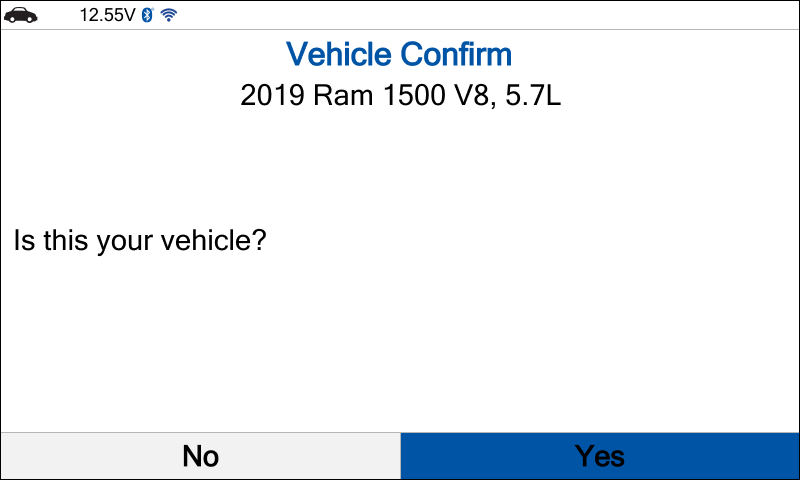
NOTE: This procedure performs an Oil Maintenance Reset on a 2019 RAM 1500 V8, 5.7L.
NOTE: Ensure that your Innova SDS43 is running firmware V23.07.18 or later. If not, refer to the guide for updating.
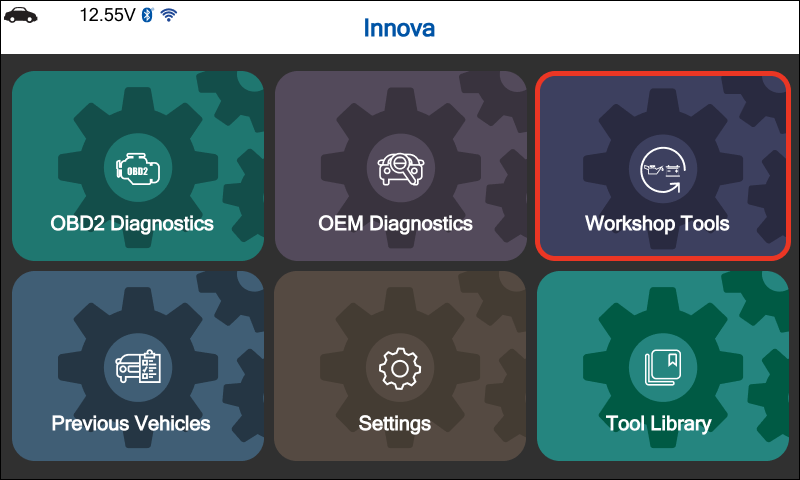
Step 1: In the home menu, select Workshop Tools by the navigation button and press the OK button.
Step 2: The Innova SDS43 will show the Vehicle Confirmation screen.
If the information is correct, select Yes.
If incorrect, select No and manually enter the vehicle’s information.
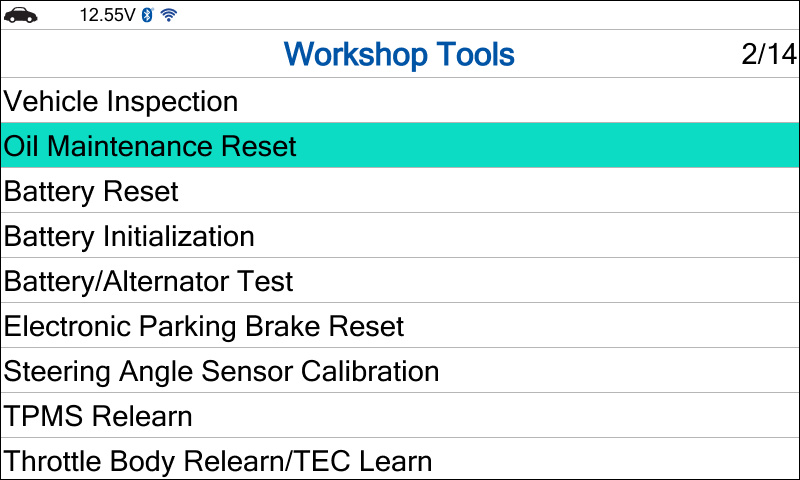
Step 3: Select Oil Maintenance Reset by the navigation button and press the OK button.
Step 4: The Innova SDS43 will display a screen with a QR code for SGW unlocking instructions. Select Continue and press the OK button.
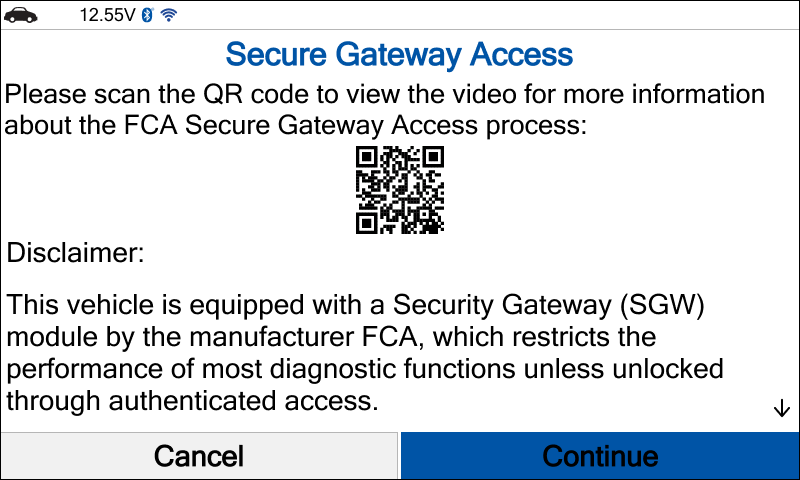
Step 5: The Innova SDS43 will show instructions to open the RSPRO® app to unlock the SGW.
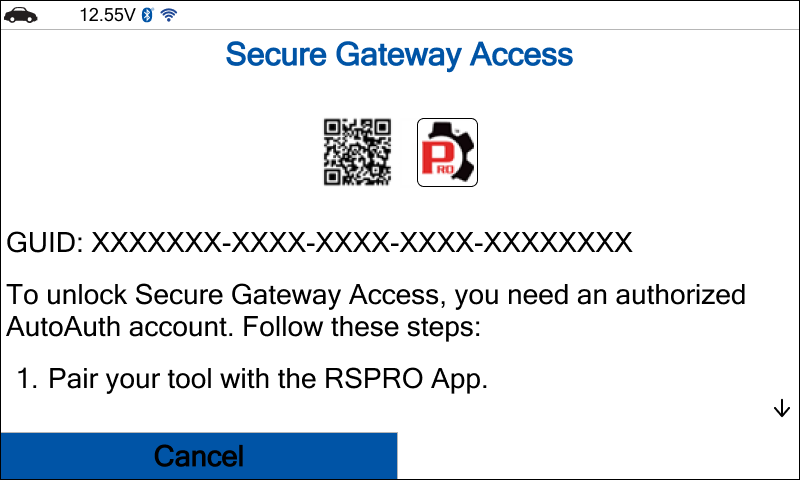
Step 6: Pair your Innova SDS43 with the RSPRO® app (refer to the guide for pairing). To be able to use the SGW unlock function on the RSPRO® app, you need to have an authorized AutoAuth account and register your Innova SDS43 with that, so:
Go to Section A to register for an authorized AutoAuth account if you don’t have one.
Go to Section B to register your Innova SDS43 with the authorized AutoAuth account.
Go to Section C to unlock the SGW if you have an authorized AutoAuth account and have registered your Innova SDS43 with your account.
A. Register an Authorized AutoAuth Account
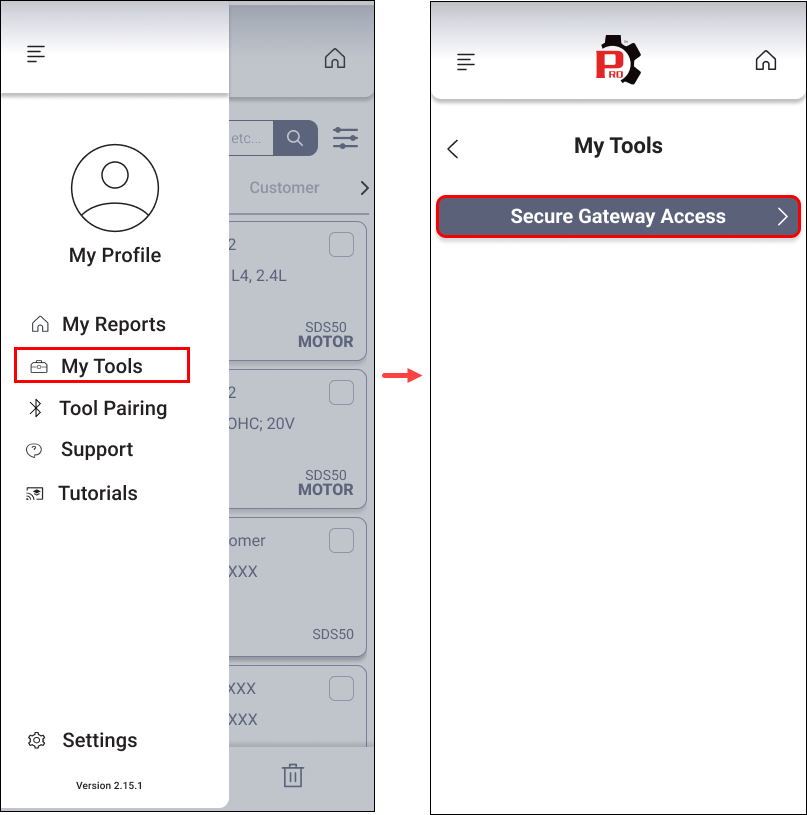
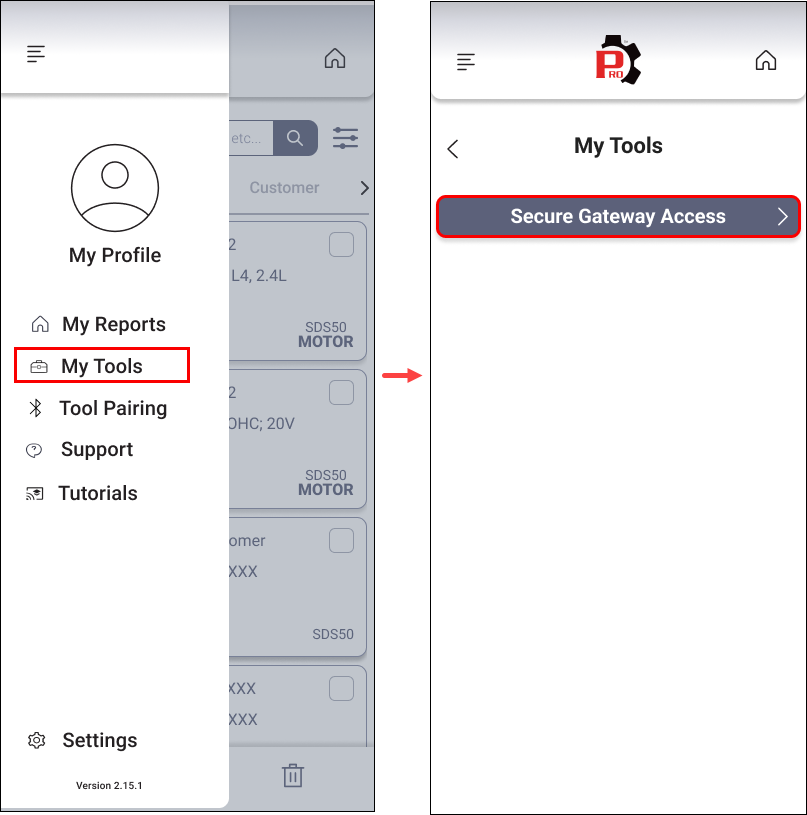
Step 1: In the RSPRO® app, tap My Tools. Then tap the Secure Gateway Access button.
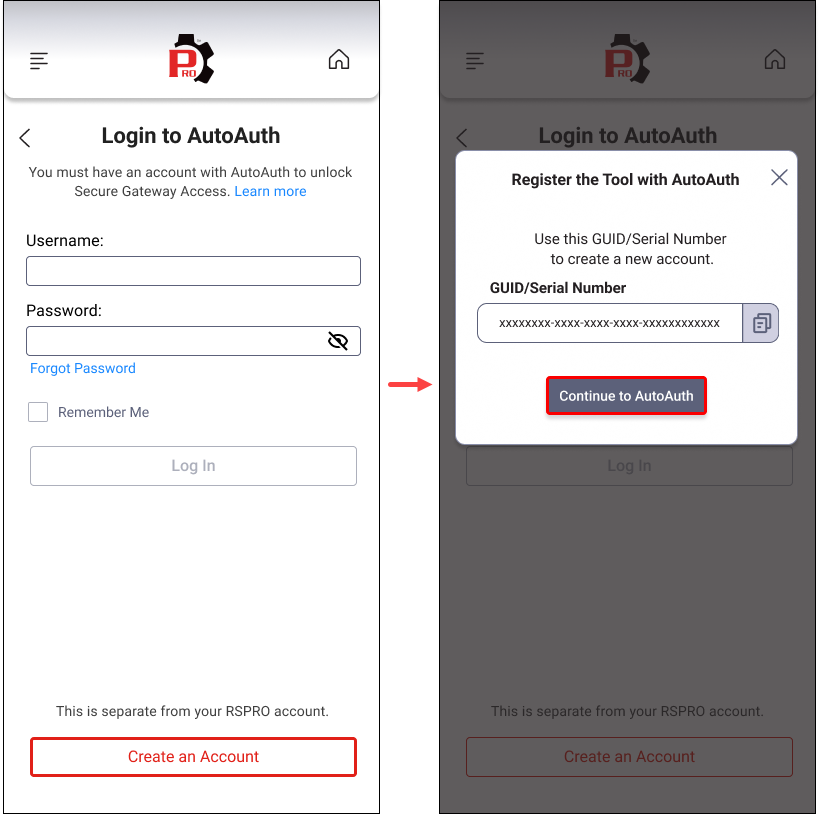
Step 2: Tap the Create an Account button. Then copy the GUID/Serial Number and tap the Continue to AutoAuth button or visit AutoAuth in your browser.
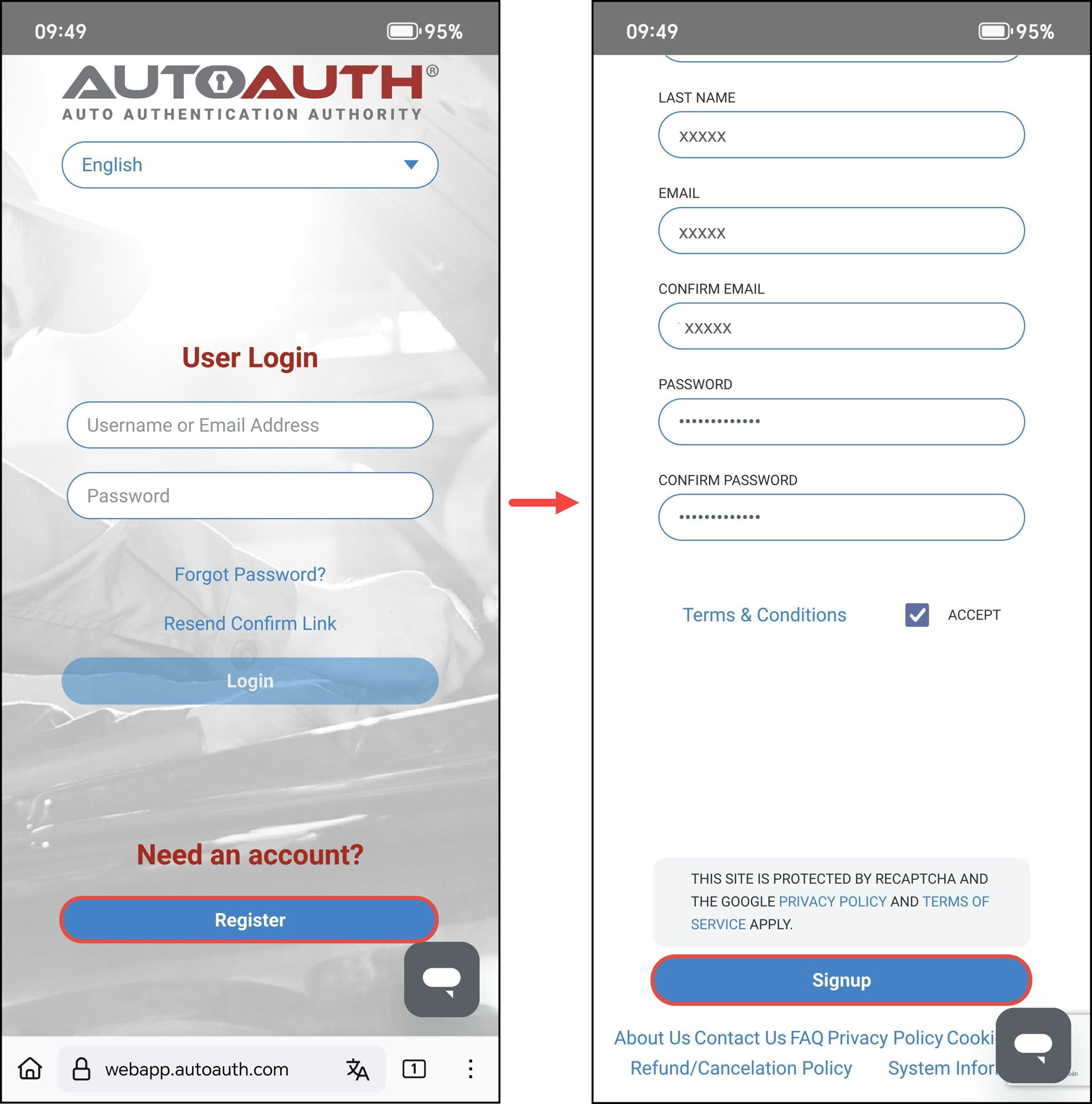
Step 3: Tap the Register button to create an account. Then, enter all required personal information and tap the Signup button.
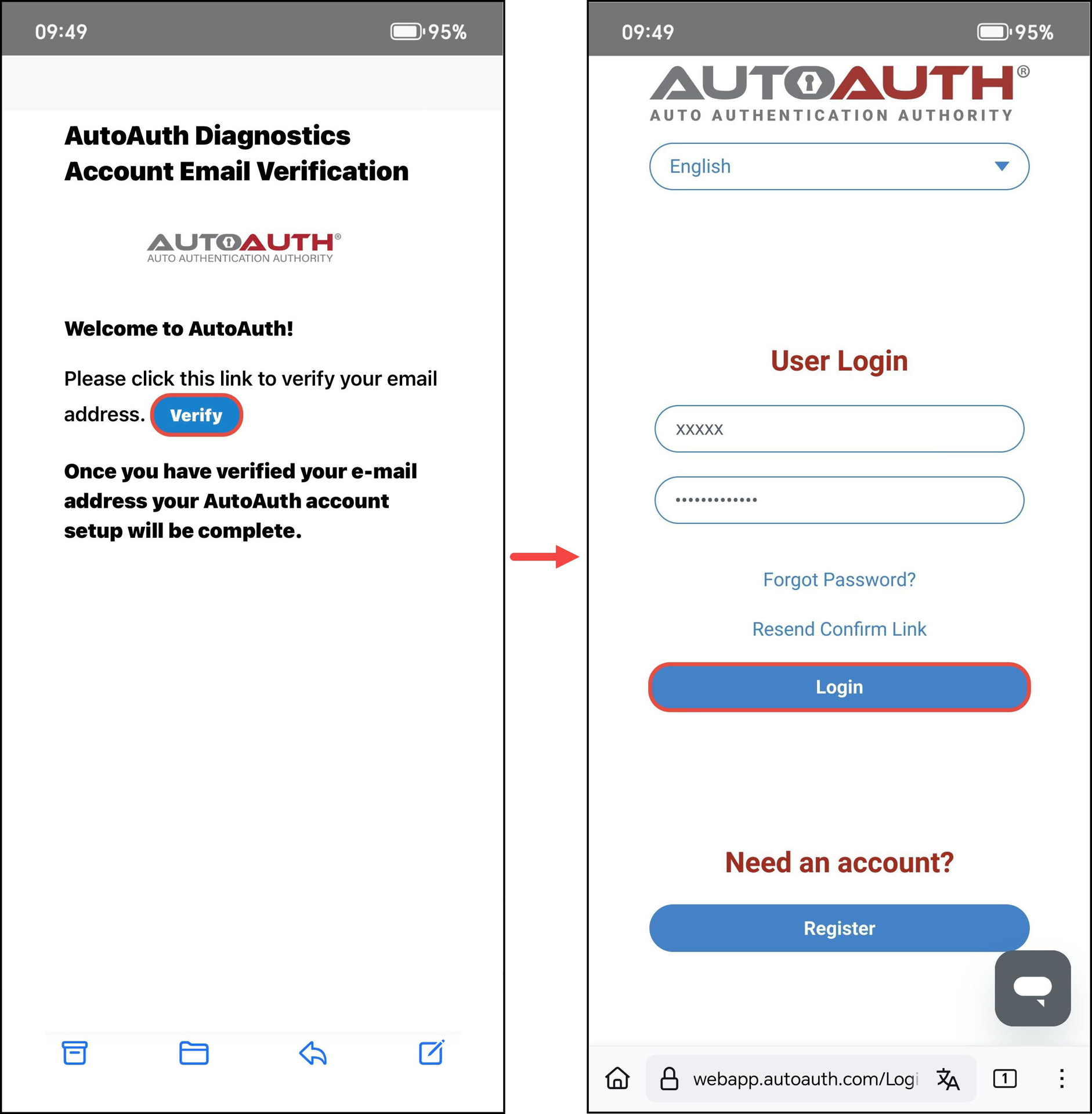
Step 4: After creating the account, verify it through the confirmation email sent to your inbox. Then, log in to the AutoAuth portal using your created account.
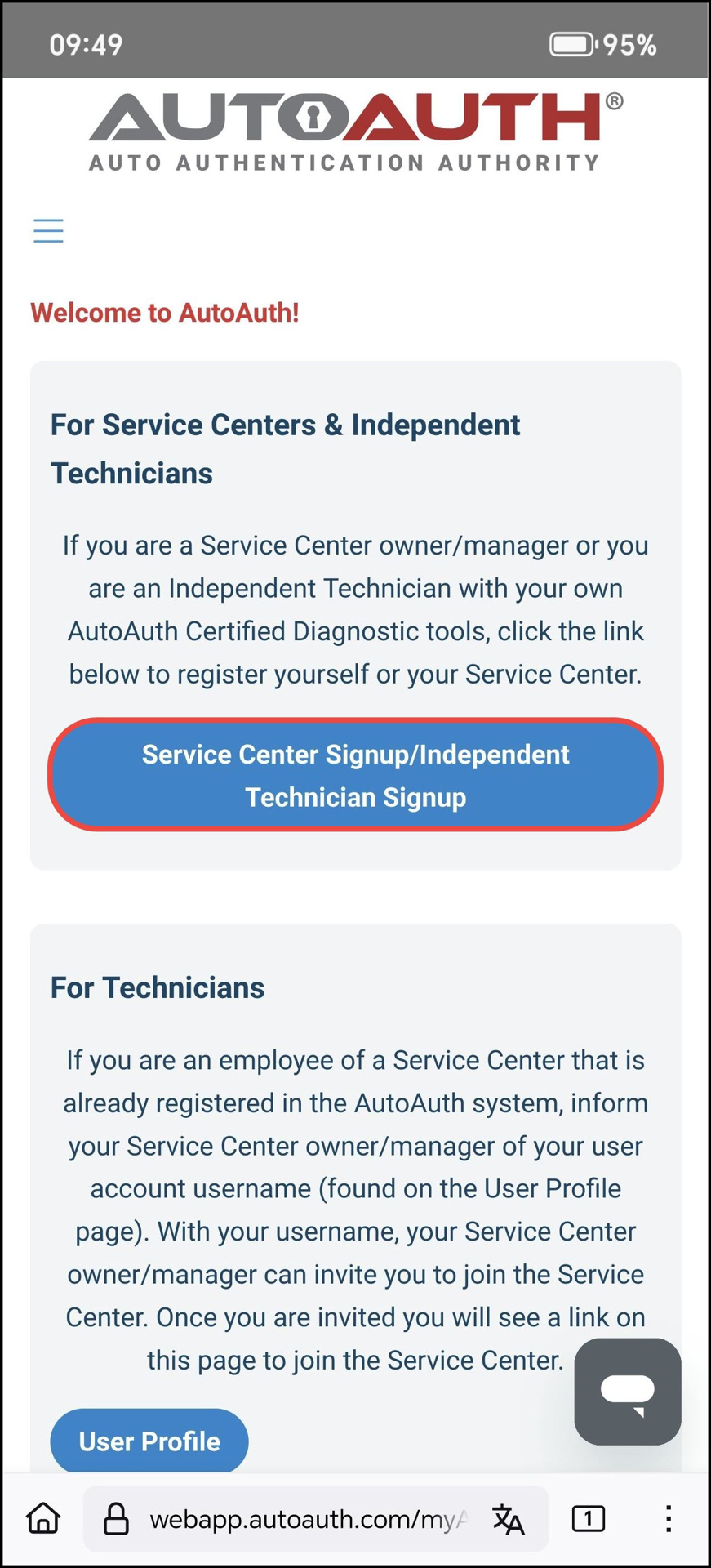
Step 5: Tap the Service Center Signup/Independent Technician Signup button in the For Service Centers & Independent Technicians plan.
NOTE: If you tap the User Profile button in the For Technicians plan, you will get your username, and with this username, your Service Center owner or manager needs to invite you to join the Service Center. Once invited, you will see a link on this page to join the Service Center.
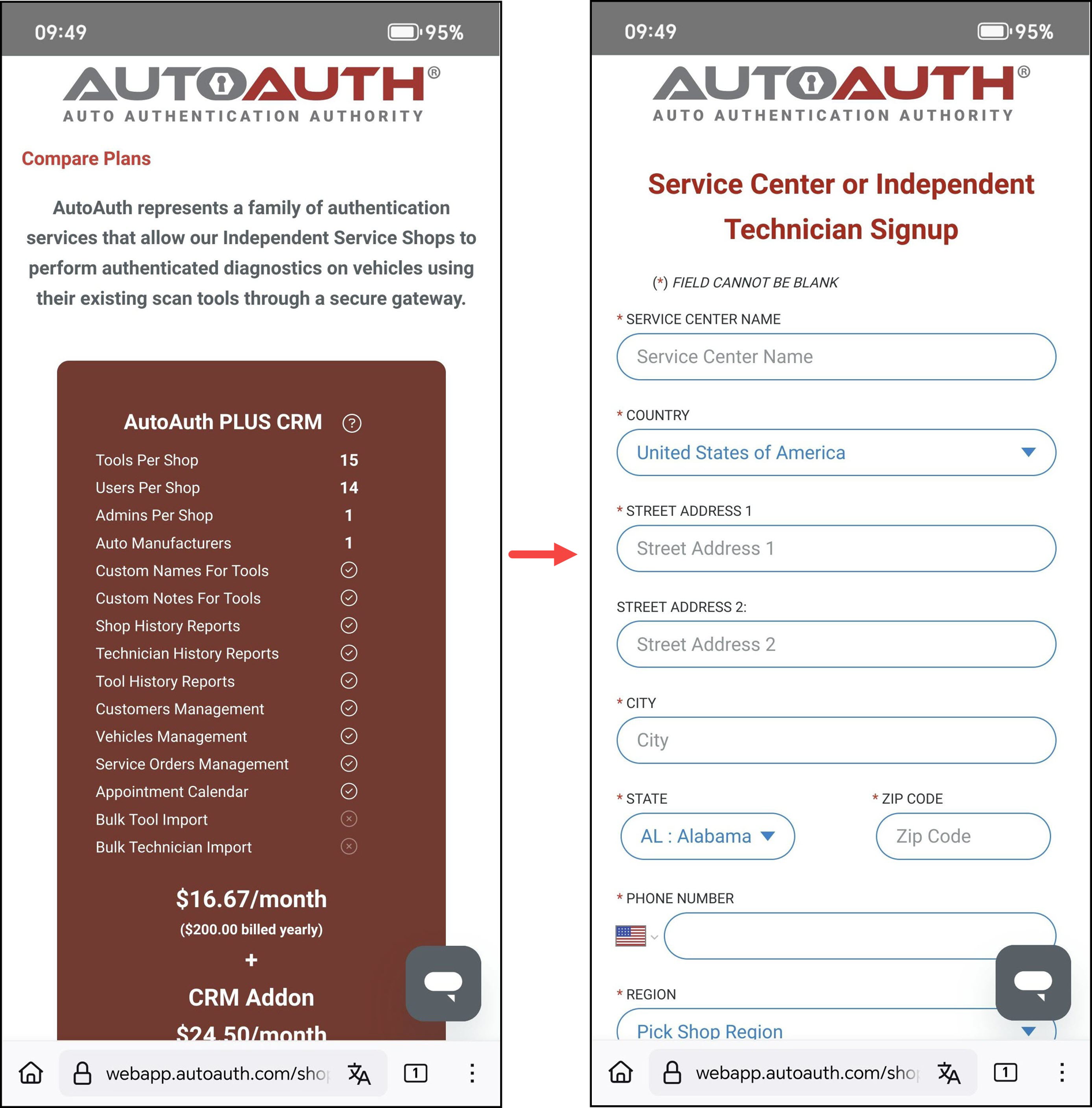
Step 6: AutoAuth requires an annual fee to maintain the service. Complete the required information and payment before using your account.
NOTE: After this step, you can proceed to Step 3 in Section B to register your device without returning to the RSPRO® app.
B. Register Your Device
Step 1: In the RSPRO® app, tap My Tools. Then tap the Secure Gateway Access button.
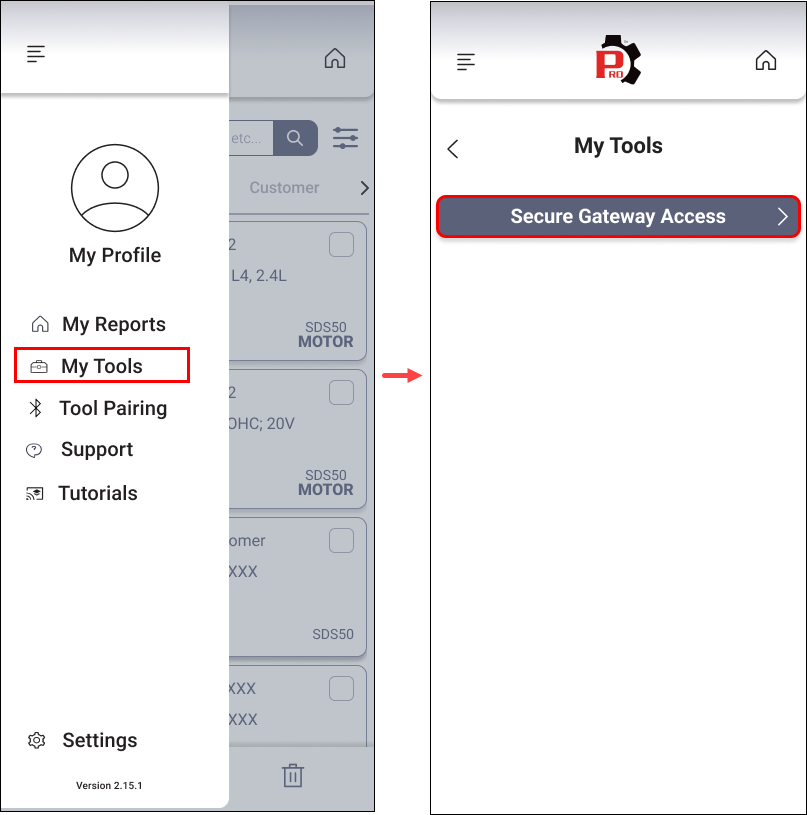
Step 2: Enter your AutoAuth account, tap the Log In button. Then, copy the GUID/Serial Number and tap the AutoAuth website URL or visit AutoAuth in your browser.
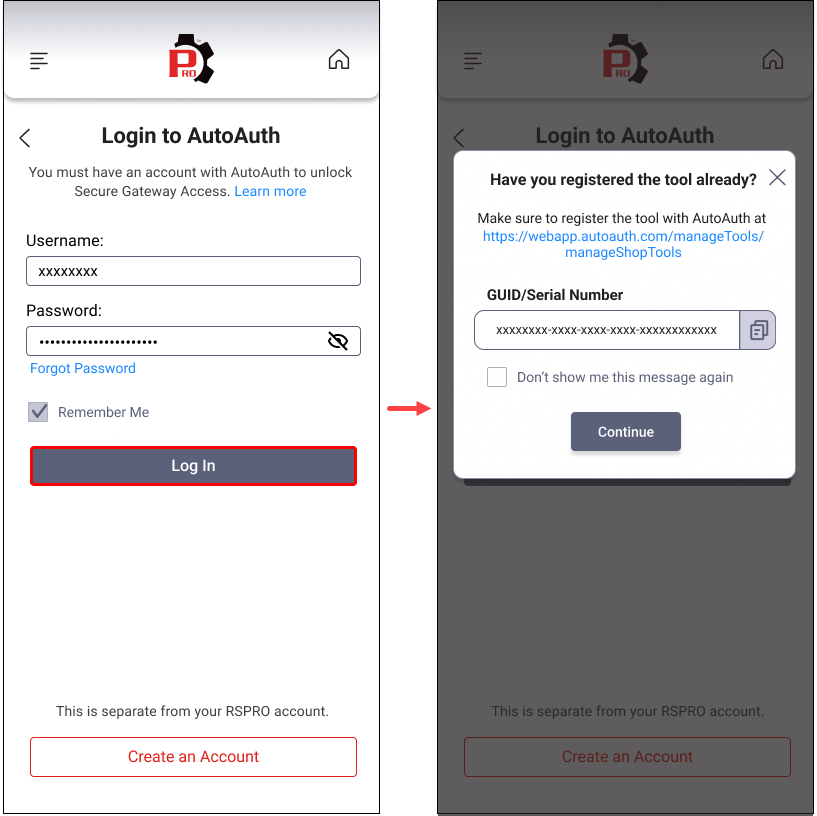
Step 3: Log in to the AutoAuth portal using your account. Then tap the Hamburger button in the upper left corner and tap Manage Tools.
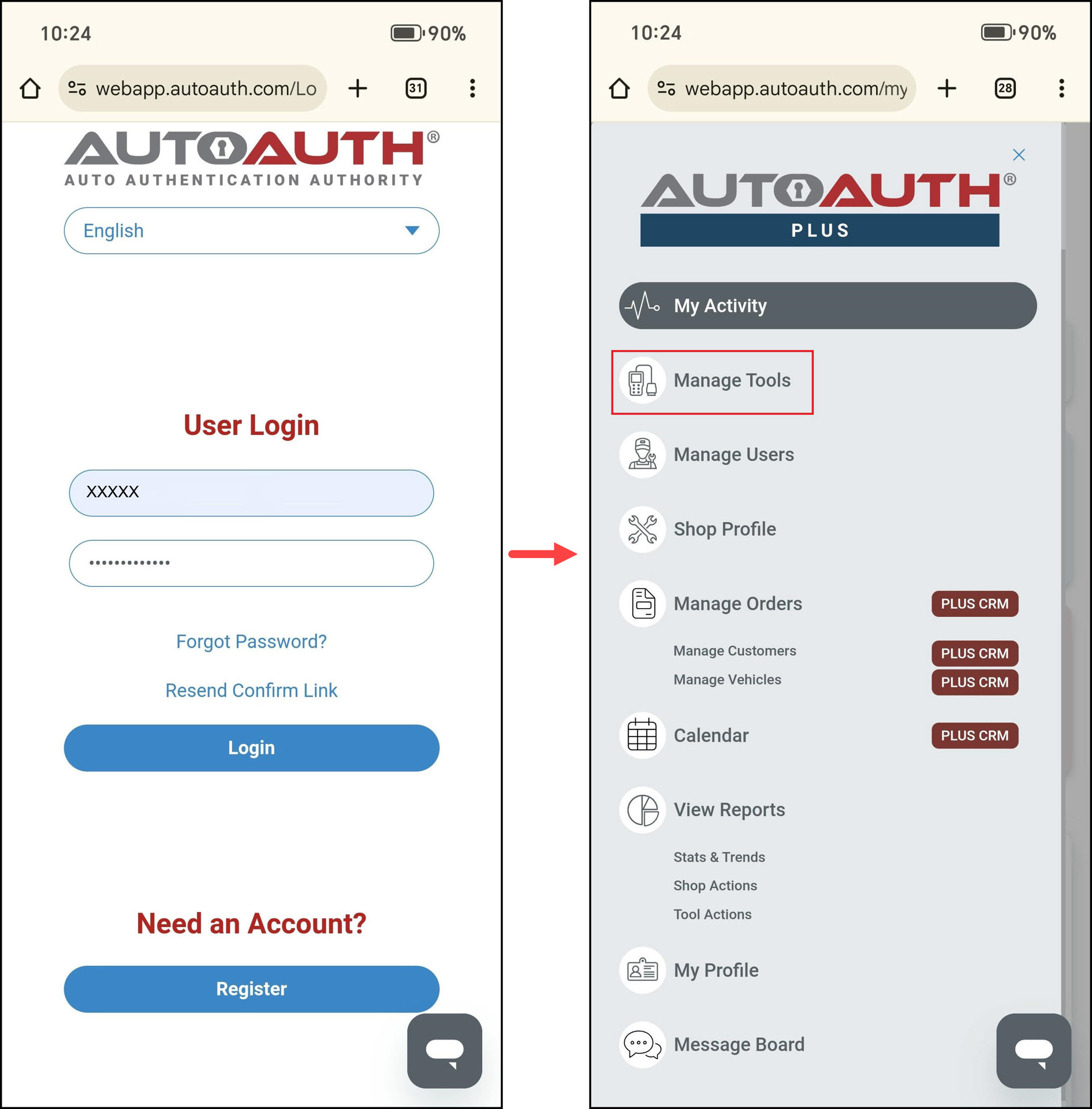
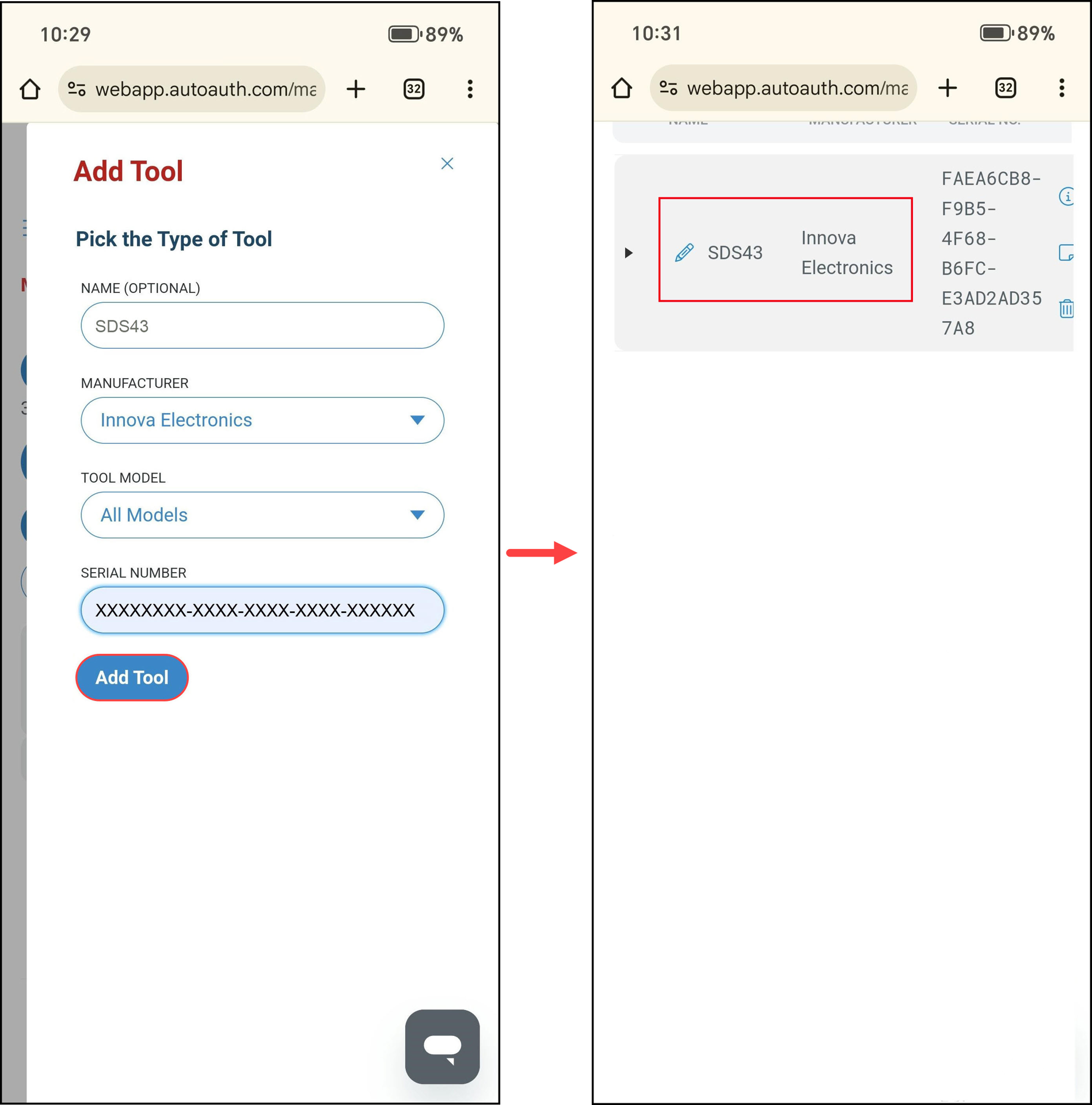
Step 4: Enter your tool's information:
Name: Input your tool’s name.
Manufacturer: Select Innova Electronics
Tool model: Select All Models
Serial number: Paste the GUID/Serial Number you copied earlier, or find it in the Version Information section under Settings in Section A.
Then tap the Add Tool button. Your tool will appear in the registered list, and you now come back to the RSPRO® app and unlock SGW.
NOTE: You can register the device immediately after creating an AutoAuth account in Section A.
C. Unlock Secure Gateway
Step 1: In the RSPRO® app, tap My Tools. Then tap the Secure Gateway Access button.
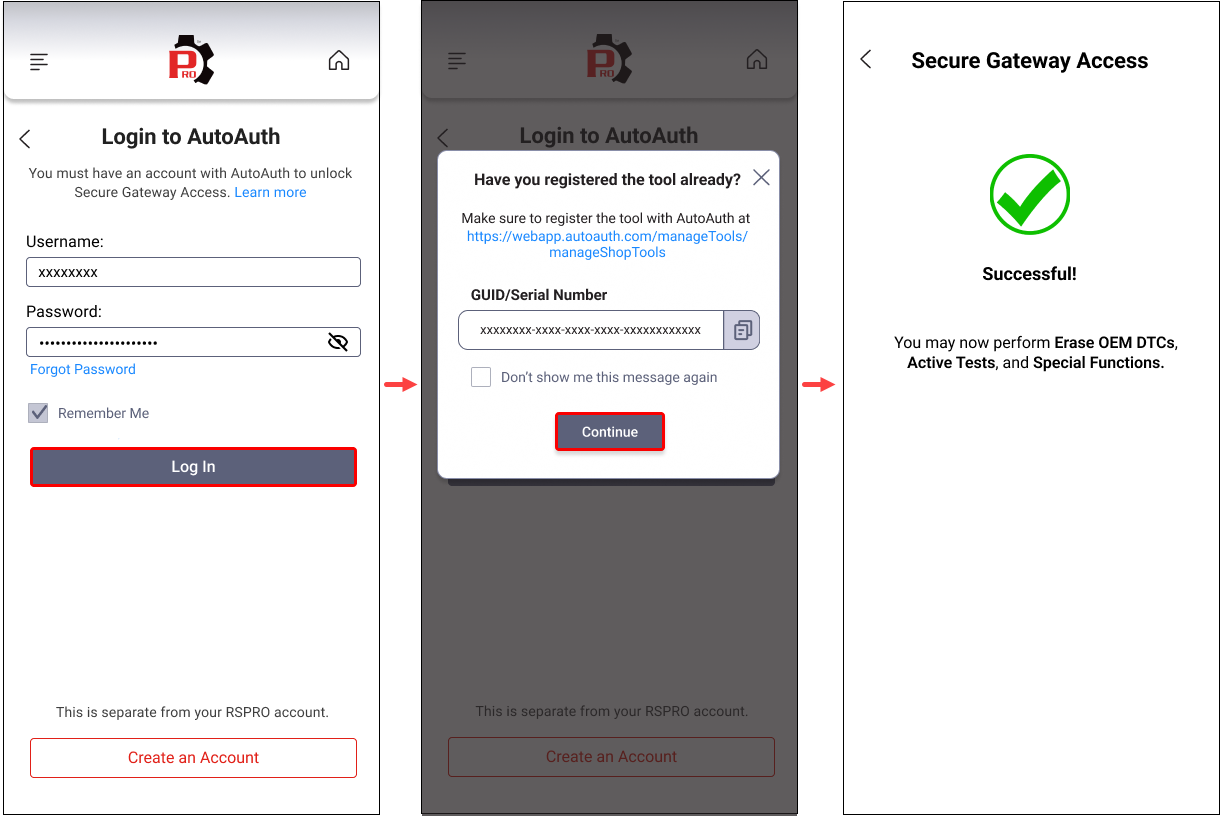
Step 2: Enter your AutoAuth account, tap the Log In button. Then tap the Continue button. Wait for the SGW to unlock. Once successfully unlocked, continue using the Innova SDS43 to perform the desired function.