Introduction
Description: This article will guide users on how to unlock the Stellantis & Nissan SGW and perform restricted functions while using the Innova 7111 Smart Diagnostic System (SDS) tablet scan tool.
Benefits: On some Stellantis (Chrysler, Dodge, Jeep, RAM, etc.) vehicles built after 2018 and some Nissan vehicles built after 2020, a Secure Gateway Module (SGW) is implemented in the electrical architecture to secure the vehicle’s network and control access. This module is similar to a firewall that prevents unauthorized vehicle network access, which may put vehicle systems and customers at risk. The Innova 7111 can perform these SGW-restricted functions after the tool is properly registered and authenticated through AutoAuth, a third-party service provider that manages Secure Gateway Access for OEM usage.
The 7111 will automatically prompt you whenever a selected function requires Secure Gateway authorization. Although the exact functions vary by tool and vehicle model, unlocking the Secure Gateway generally enables the following:
Stellantis (2018 and newer)
Erase OEM Diagnostics Trouble Code
OEM Diagnostics (Active Tests, Special Functions)
Workshop Tools and Service Functions (Resets, Relearns, Routines and Calibrations)
Nissan (2020 and newer)
OEM Diagnostics (Active Tests, Special Functions)
Workshop Tools and Service Functions (Resets, Relearns, Routines and Calibrations)
Instructions
NOTE: This procedure is carried out on the 2018 Dodge Challenger.
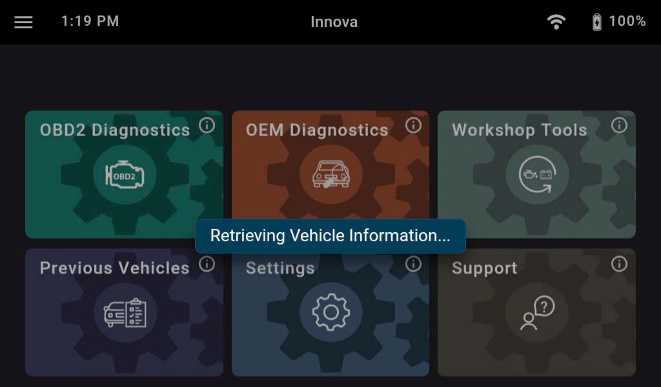
Step 1: Connect the Innova 7111 to the vehicle via the 16-pin Data Link Connector (DLC). Wait a moment for the AUTO-LINK process to be completed.
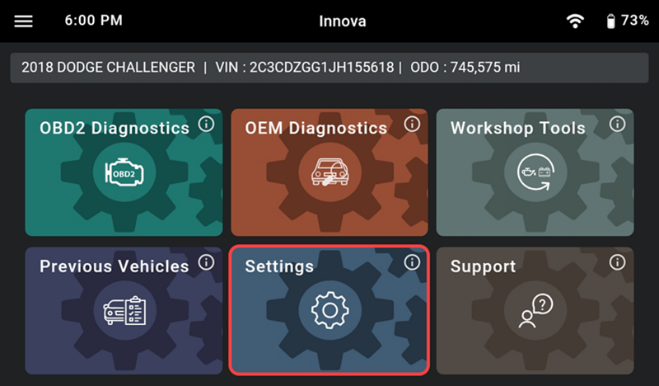
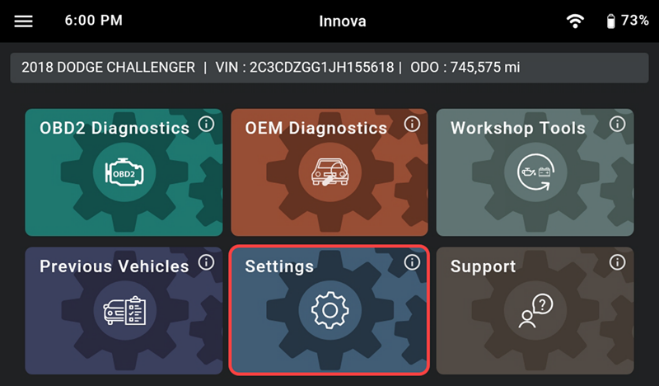
Once completed, the tablet displays general information such as VIN, vehicle information, and odometer. Next, select the Settings section.
NOTE: Make sure Innova 7111 is connected to Wi-Fi throughout the process.
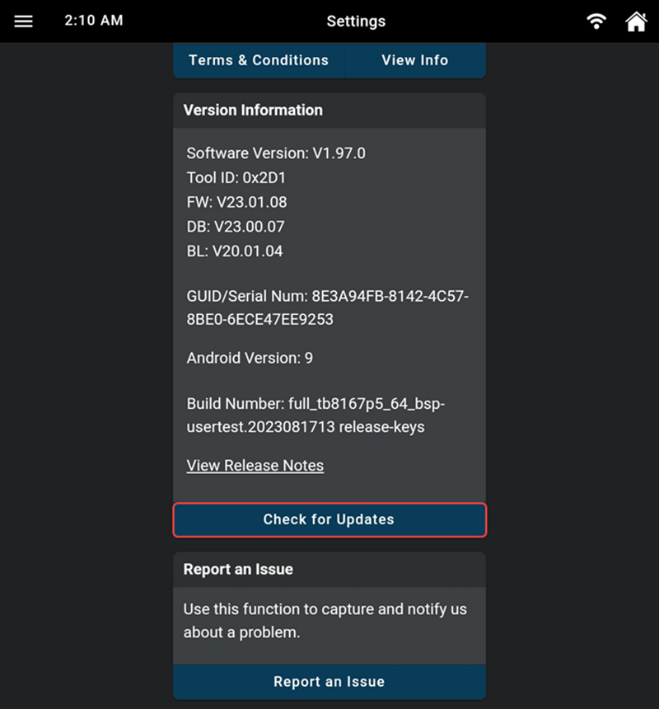
Scroll down and check for the version. Tap the Check for Updates button to check and download the latest version.
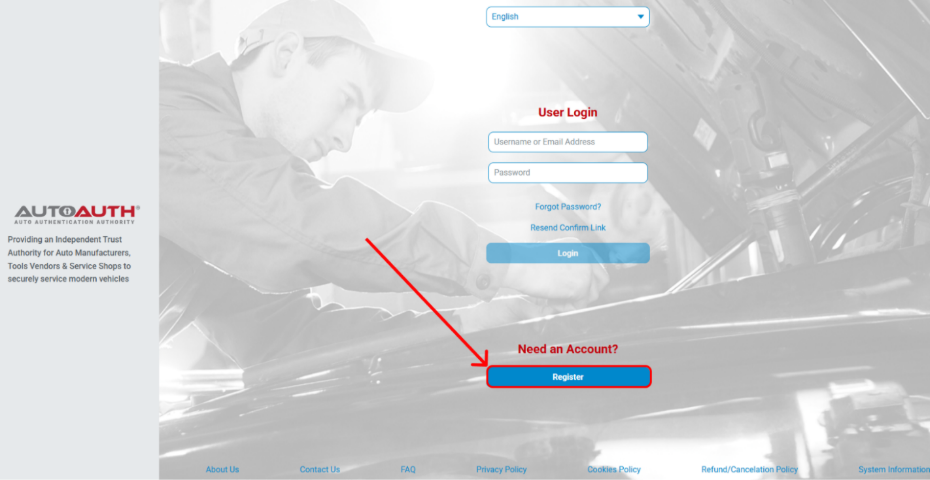
Step 2: Go to AutoAuth and tap the Register button to create an account, fill in the individual information, and select the Signup button.
Step 3: Once created, verify the account via the email used to sign up.
Step 4: Log in to AutoAuth’s portal using the account just created.

Step 5: Choosing the For Service Centers & Independent Technicians account plan, AutoAuth charges a base annual fee to use the AutoAuth service.
NOTE: If choosing the For Technicians account plan, the account must be added by the Service Centers & Independent Technicians account to use the AutoAuth service.
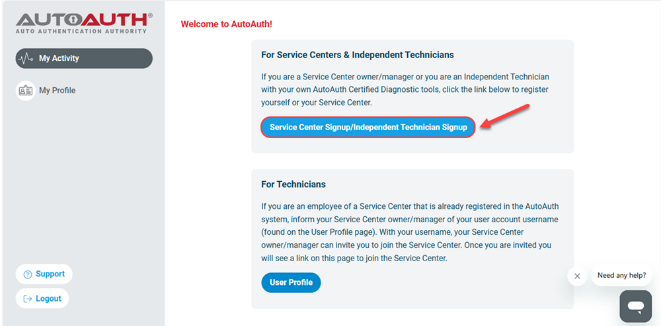
Step 6: After choosing the For Service Center or Independent Technicians account plan, there is information, and payment must be completed before using the service.
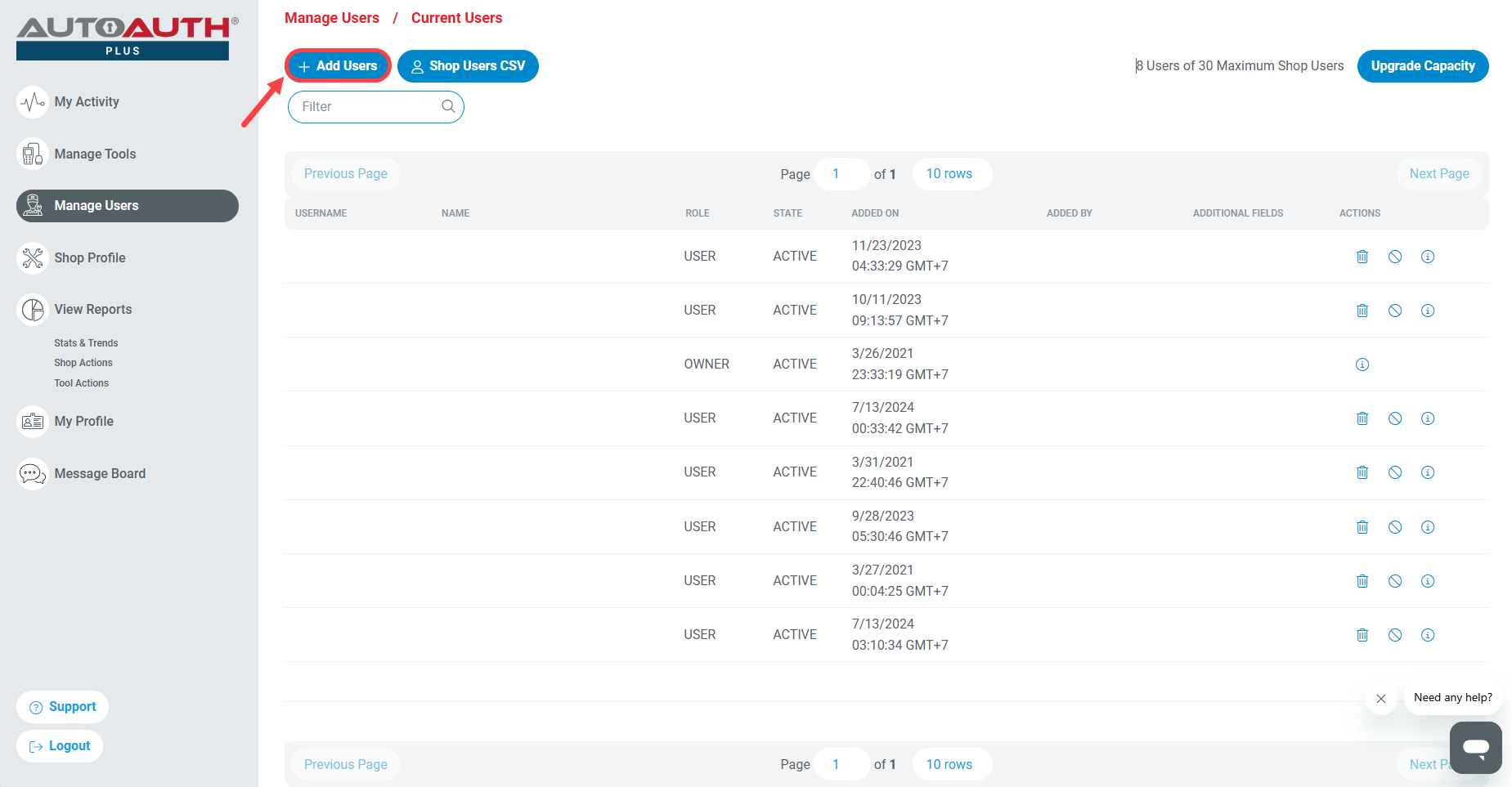
Step 7: To add a user, tap the Add Users button.
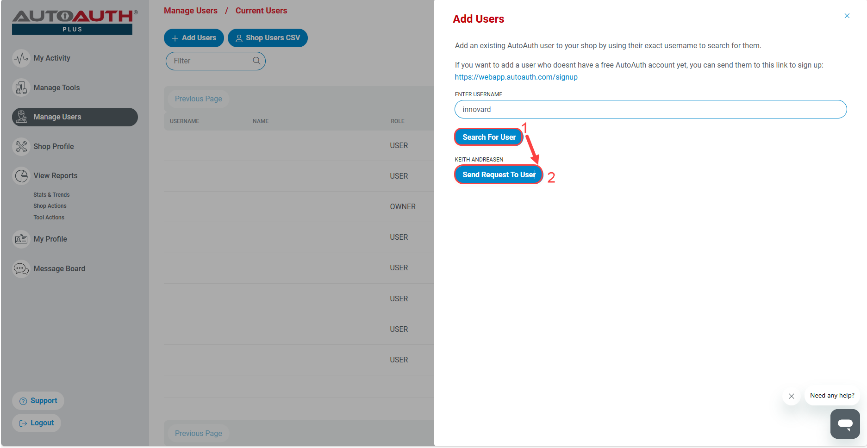
Then, enter the username in ENTER USERNAME correctly and select Search For User button (1). Wait a minute, the screen shows the name of the user that is added. Select the Send Request To User button (2).
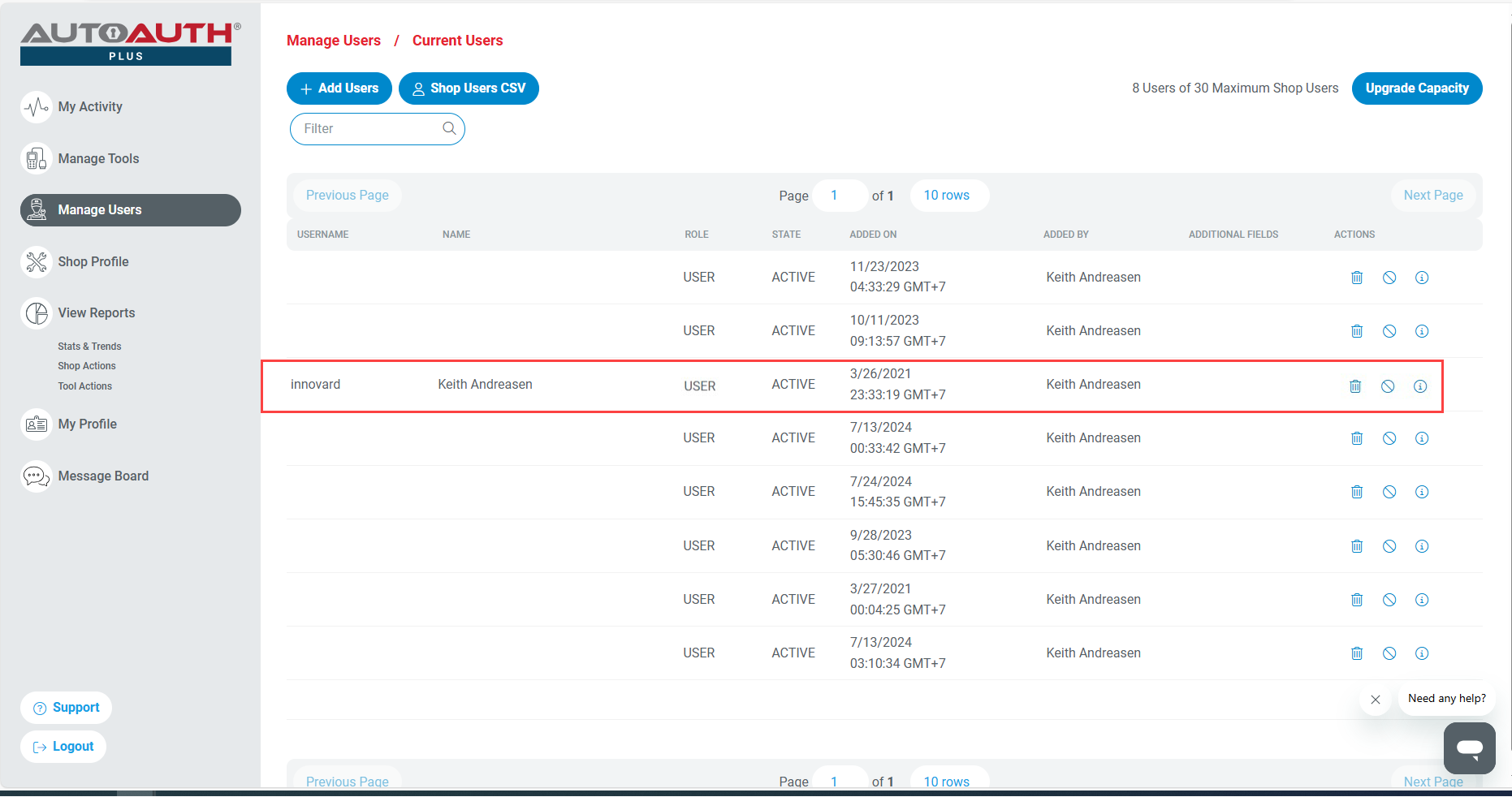
After accepting the request, the new user will show up on the list of Shop Users and can use diagnostic tools registered with the shop.
Step 8: To register the device, tap Settings section to view and copy the tool’s serial number.
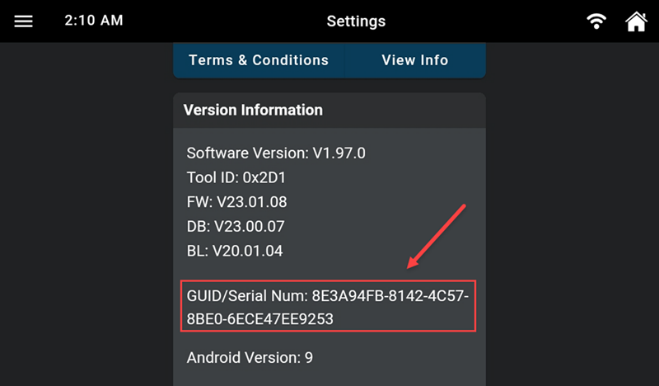
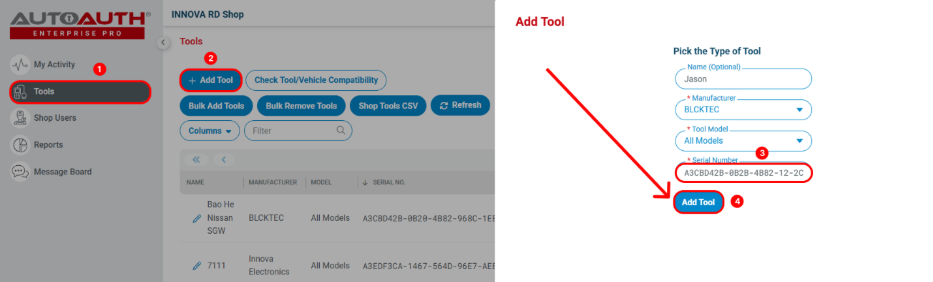
On the AutoAuth account, navigate to Manage Tools section, select Innova Electronics as the manufacturer, then select All Models under model and enter the tool’s serial number in hand.
Tap the Add Tool button to complete the process and the Innova 7111 is SGW ready.
Step 9: For FCA vehicles with SGW equipped, a Secure Gateway Access message will pop-up once tapping into OEM Diagnostics or Workshop Tools tab. Select the OEM Diagnostics section.
NOTE: A constant Internet connection is required. Poor internet connection may cause the unlocking process to fail.
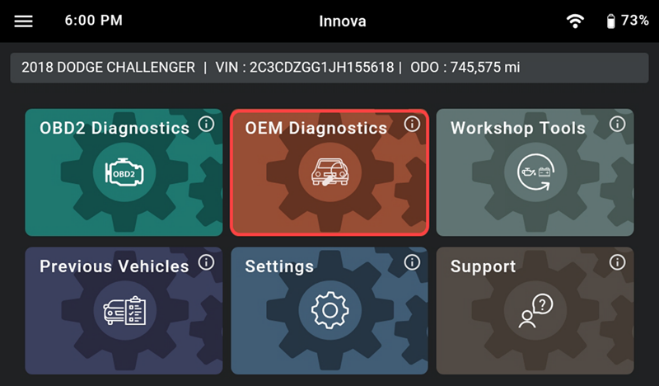
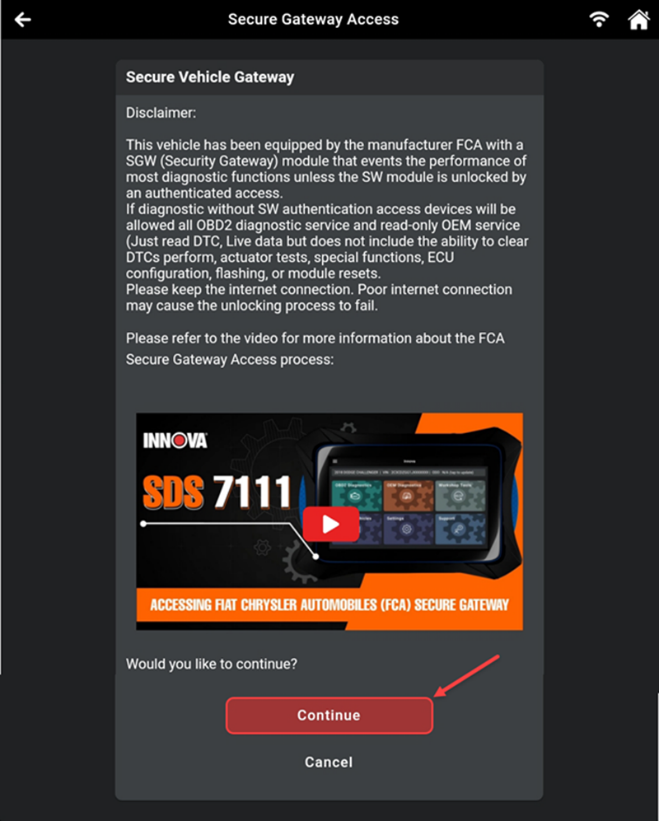
The Innova 7111 will show Secure Gateway Access pop-up. Scroll down and tap the Continue button to log in the account.
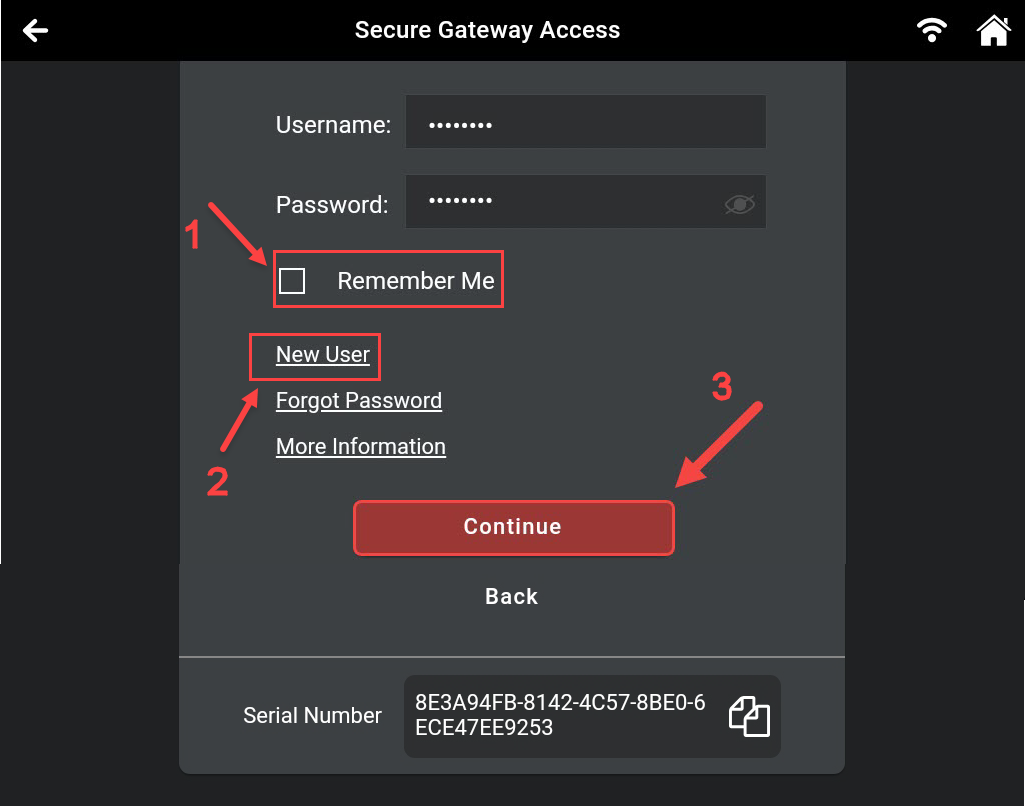
Step 10: Proceed to log in using the existing AutoAuth login credentials by selecting the Continue (3) button.
Alternatively, it is possible to create a new account by tapping New User (2) button if you have an account not registered yet. Tap Remember me (1) checkbox to save the Username and Password for the next login.
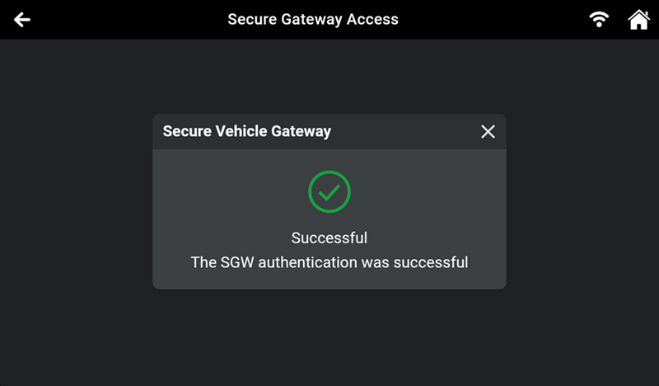
Wait a few minutes and the scan tool will show the result of the connection. After that, perform all functions as casual.
NOTE: Connection may be unsuccessful if the user has exceeded their API calling threshold.
The above steps are an example procedure when performing all functions including Erase OEM DTCs, OEM Special Functions/Active Tests, and Workshop Tools (Resets, Relearns, Routines, Calibrations) on vehicles applied feature SGW.
In the case of NOT using the functions listed above, please the procedure below:
Step 1: When the screen Secure Gateway Access pops up, select the Cancel button.
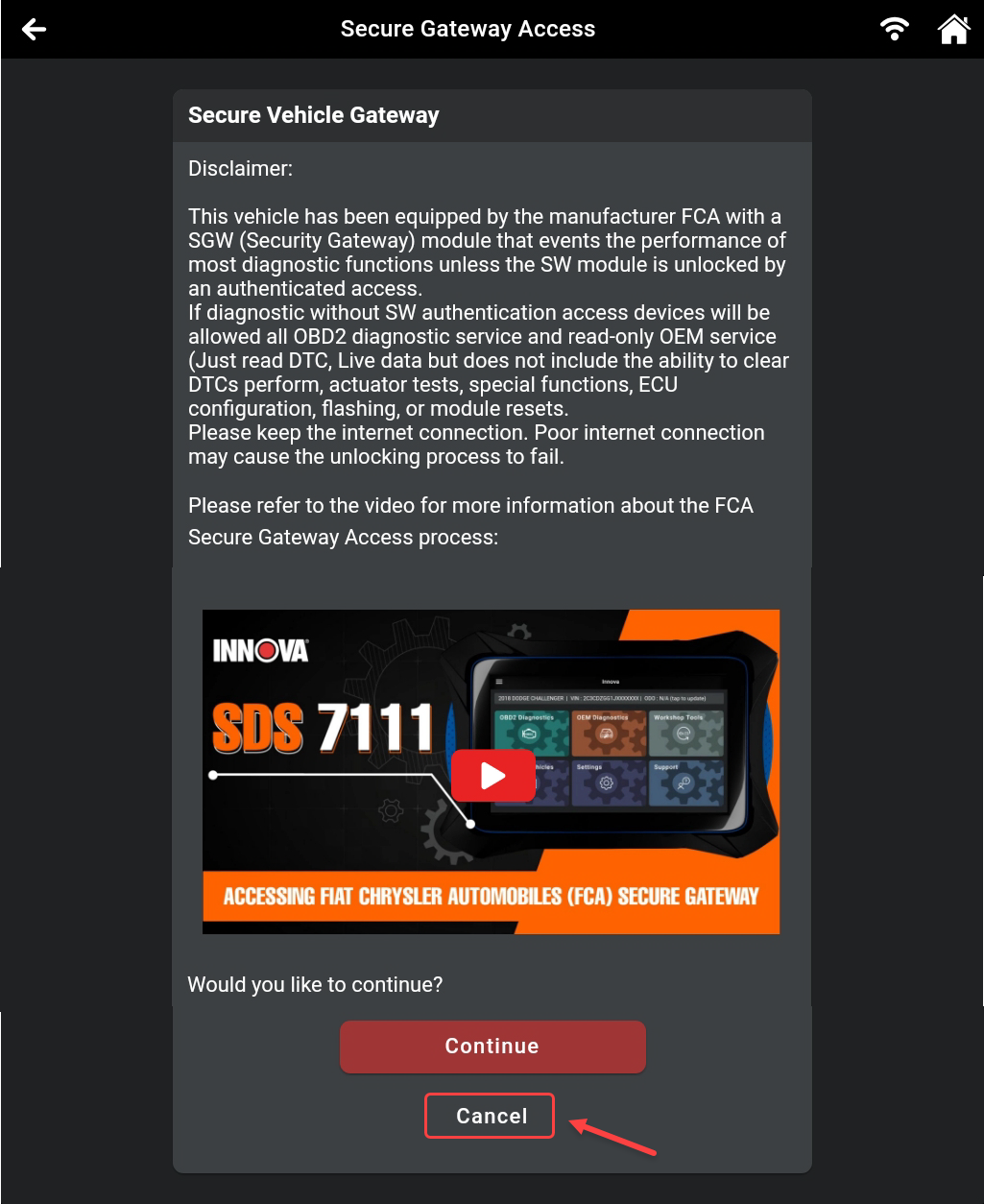
Step 2: After that, select Continue without unlocking the SGW button.
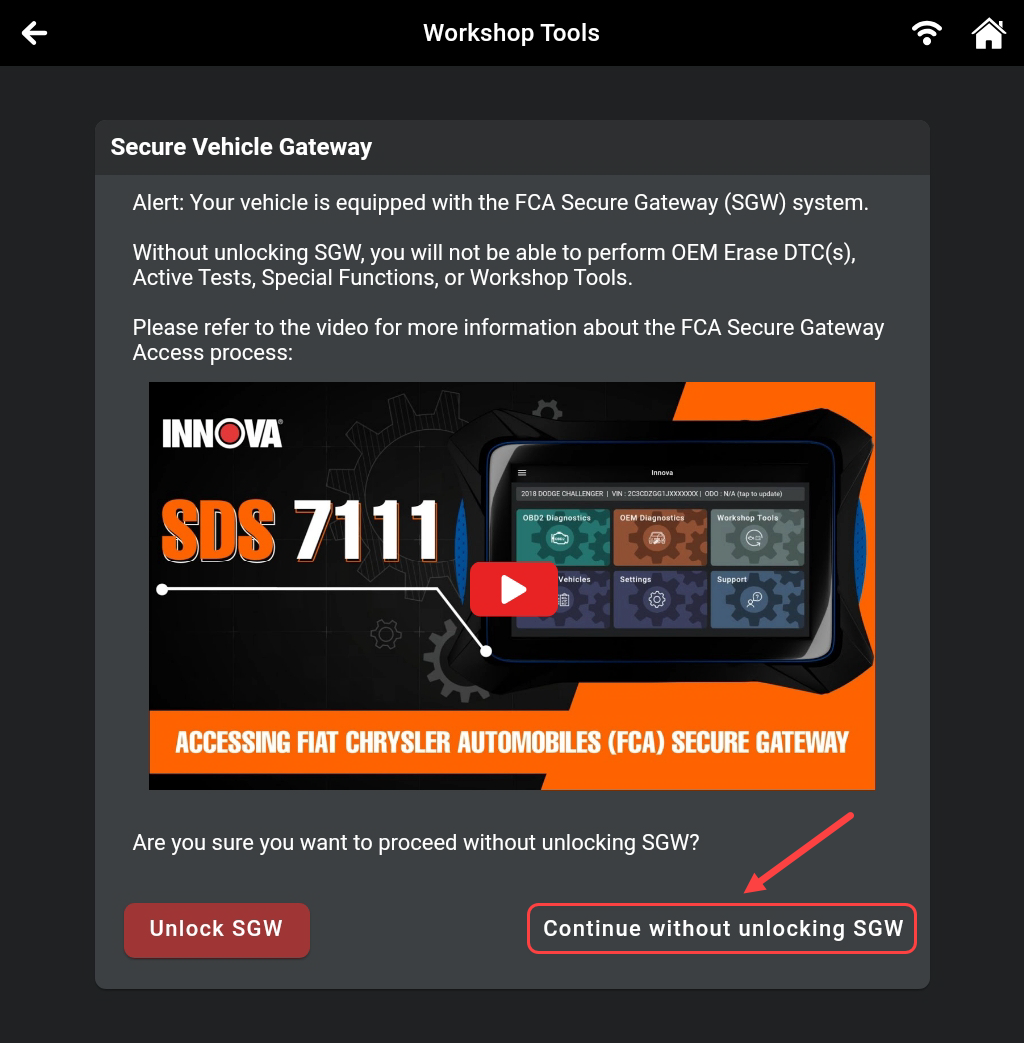
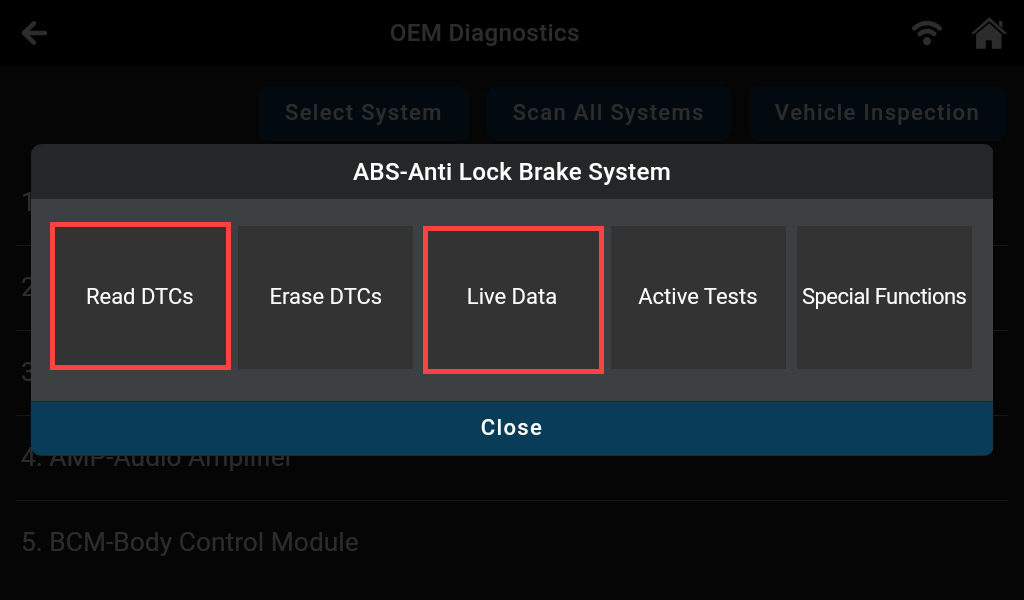
At this time, other functions such as Read DTCs and Live Data in OEM Diagnostics can be accessed.
Troubleshooting
1. Does the Secure Gateway unlock process require an Internet connection?
- Yes. The Innova 7111 must maintain a stable Wi-Fi connection throughout the unlock process. If the connection is weak or interrupted, the unlock request may fail and need to be repeated.
2. How can I ensure full Secure Gateway access for both Stellantis and Nissan vehicles?
- To ensure full Secure Gateway access for both Stellantis and Nissan vehicles, update your Innova 7111 to the latest available firmware version.

