Introduction
Description: To guide you on how to use the Demo Mode function while using the Innova 7111 Smart Diagnostic System (SDS) tablet scan tool.
Benefits: The Demo Mode of the Innova 7111 is a crucial feature that caters to both seasoned professionals and newcomers with hands-on experience before. In the dynamic world of technology, where choices are abundant, the Demo Mode stands out as a symbol of convenience and certainty. Offering a glimpse into the tool's capabilities, this function serves as a presentation of the Innova 7111, a bridge between curiosity and confidence, allowing users to explore its potential firsthand.
Demo Mode promises clarity and empowerment in your decision-making process and this article demonstrates how to use the Demo Mode function of Innova 7111.
Instructions
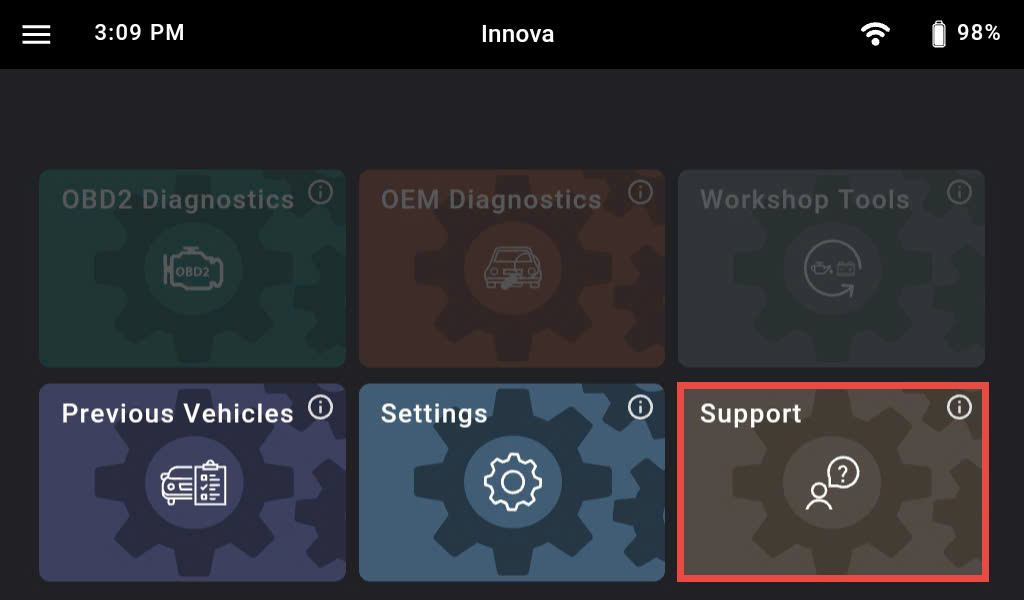
Step 1: Turn on your Innova 7111 by holding the power button for a few seconds (no need to connect the tool to your vehicle). Then tap the Support section.
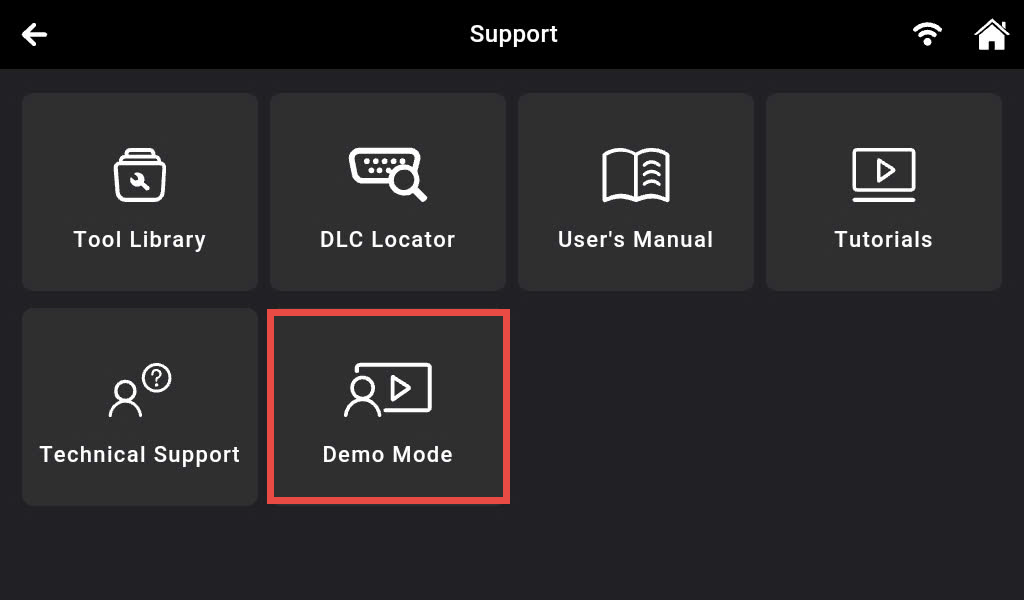
Step 2: Tap the Demo Mode section to enter the feature.
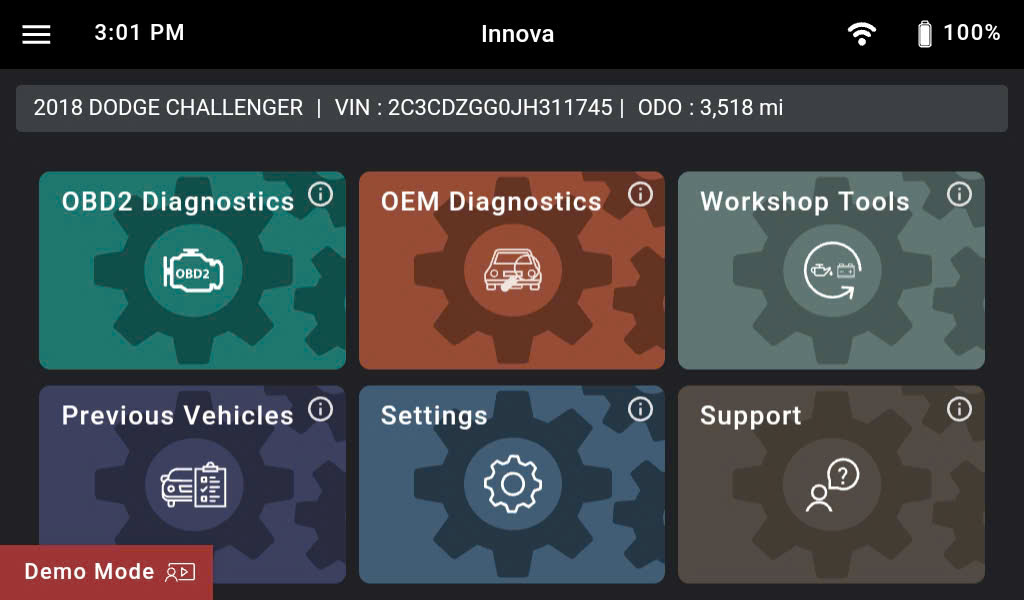
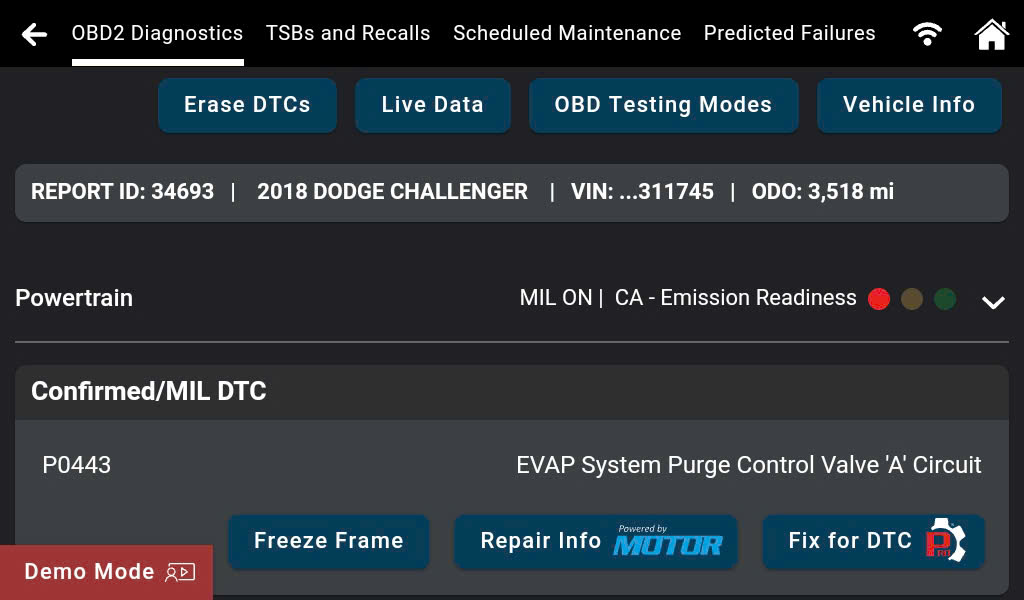
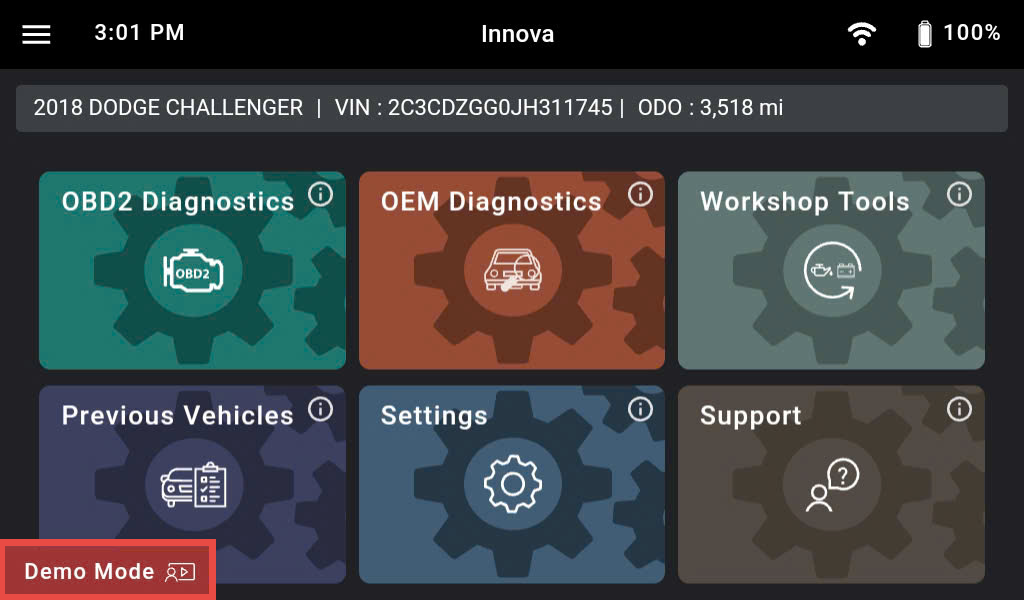
Step 3: The Innova 7111 will show the home screen of Demo Mode, including the tool’s functions, simulated model, VIN number, and Odometer value, as same as scanning the real vehicle.
Tap the OBD II Diagnostics function for detailed information. A list of information for the system will be shown after scanning such as Live Data, Erase DTCs, OBD Testing Modes, etc. You can select these functions to observe how Innova 7111 works in real vehicles.
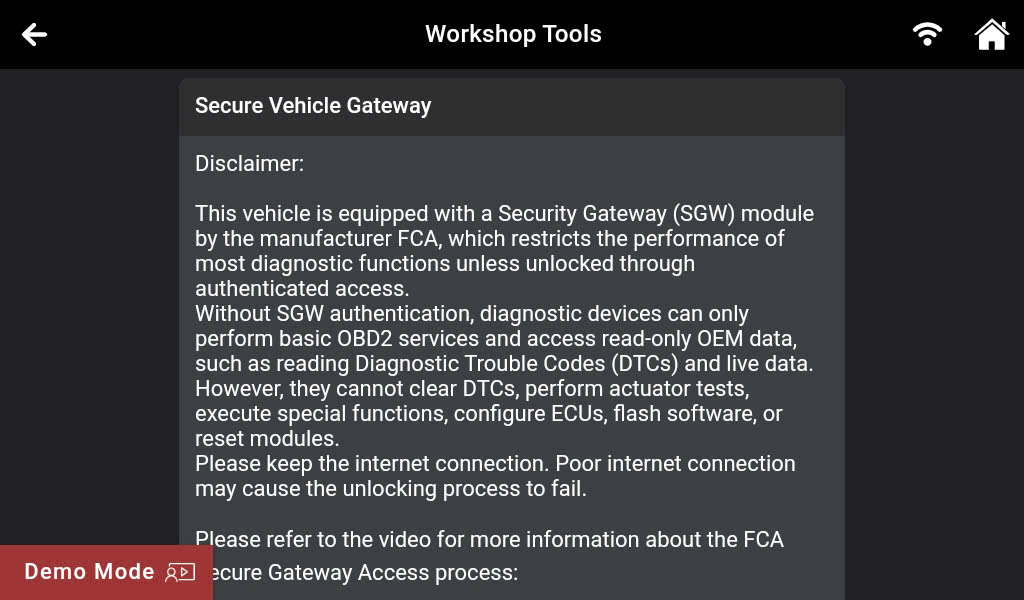
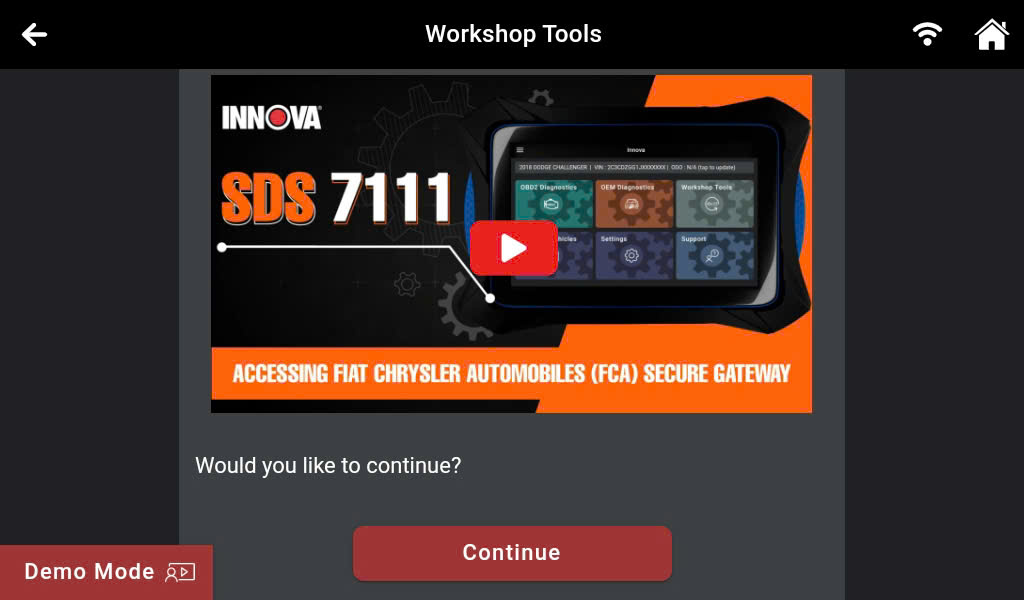
Step 4: When you tap the OEM Diagnostics or Workshop Tools section for the first time, a pop-up of Secure Vehicle Gateway will be shown. You can scroll down to read instructions on how to perform the FCA process or watch the guiding video attached for more information.
Note: The vehicle used in this example required access to the Secure Vehicle Gateway, while others may not need this step.
Scroll down and tap the Continue button a simulated account will be shown, then tap the Continue button to end the process.
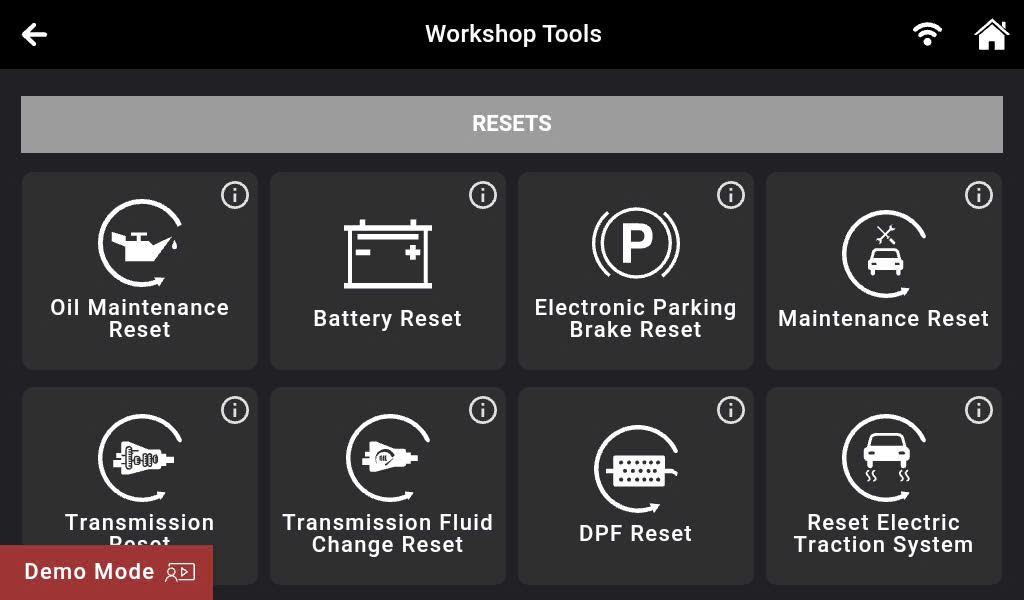
Now you can experience the OEM Diagnostics and Workshop Tools functions to see how they will work in real vehicles.
Note: The Innova 7111 supports Security Gateway for Fiat Chrysler Automobiles (FCA), etc.; vehicles from other makes may not require the Security Gateway.
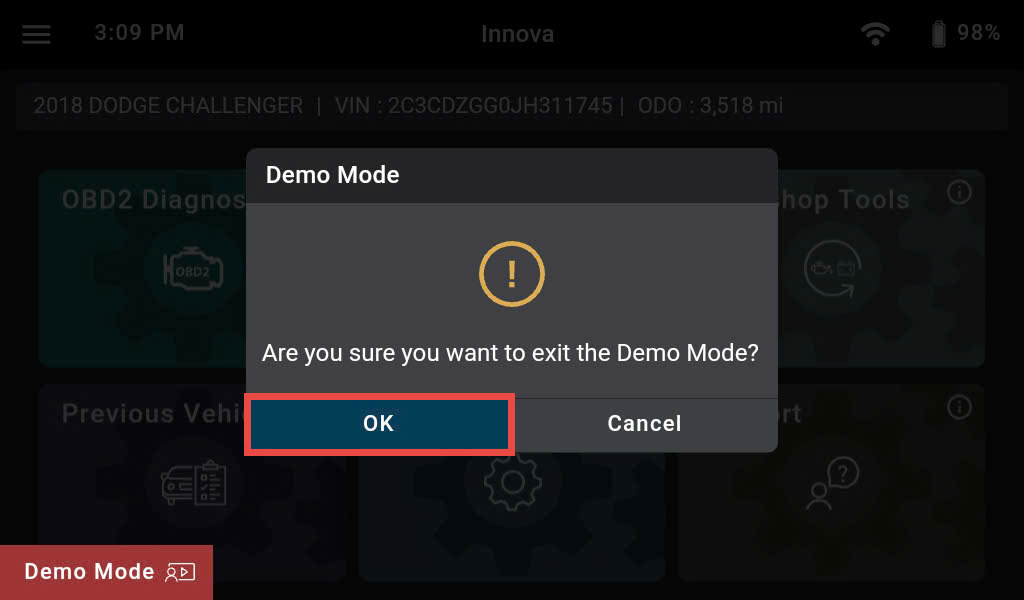
Step 5: Anytime you want to exit the Demo Mode, you can tap the Demo Mode button that always appears in the lower left corner of the screen.
A pop-up confirming exit Demo Mode will be shown. Tap the OK button to end the process or tap the Cancel button to continue using Demo Mode.